Best Gaming PC for Overall Performance: Balanced Power Without Overspend
Best Gaming PC for Overall Performance: Balanced Power Without Overspend
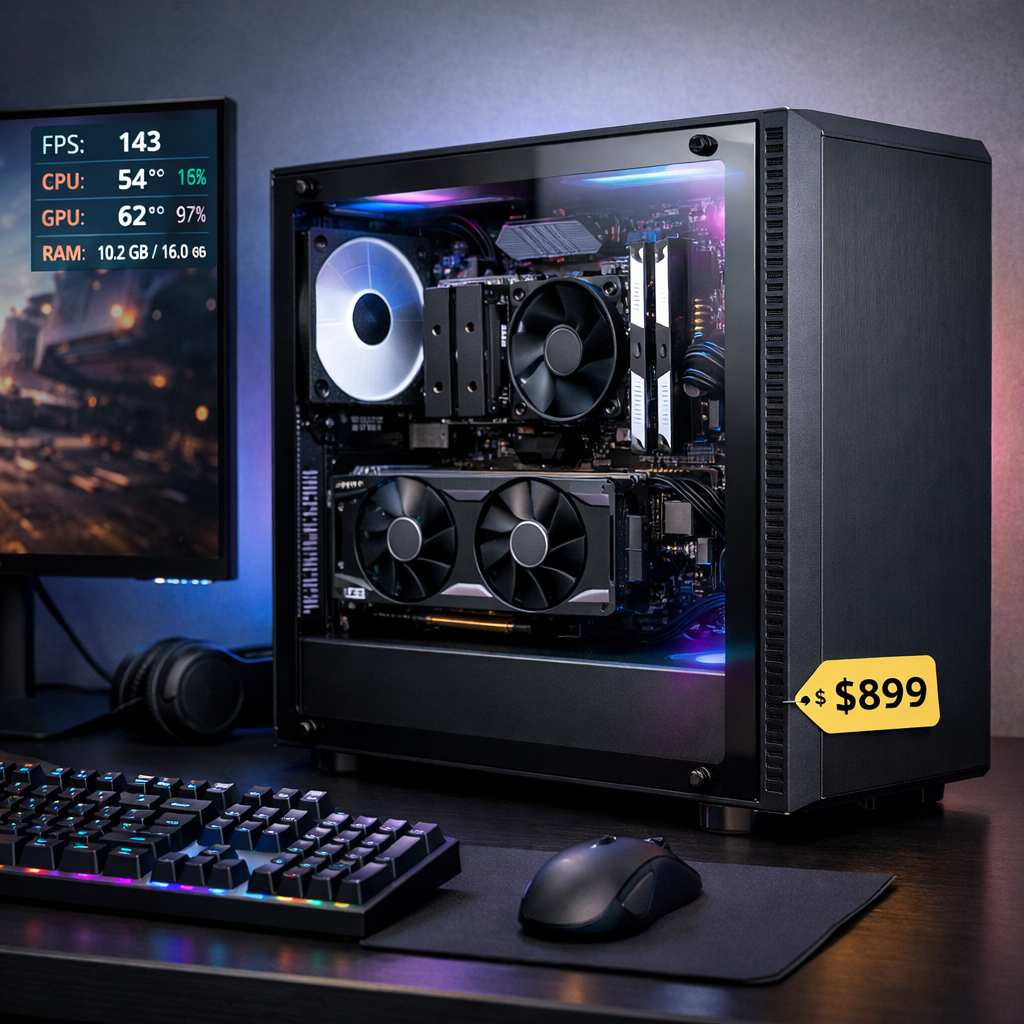
At Gaming Device Advisor, the best gaming PC for overall performance strikes a balance: enough GPU to hit your target resolution smoothly, a CPU that won’t cap frames, cooling that keeps clocks high and fan noise low, and parts you can upgrade later without paying flagship premiums. In 2026, that usually means a mid-to-upper‑midrange GPU for 1440p or a sensible high‑end build for 4K, paired with fast NVMe storage, quiet airflow, and complete I/O. Thanks to integrator pricing and broad parts availability, quality prebuilts often deliver better value and faster delivery than DIY, especially if you pick with ports, thermals, and serviceability in mind.
What best overall performance means
Overall performance is sustained, smooth frame delivery at your target resolution with acceptable noise and thermals, backed by fast storage and the right ports, plus clear upgrade paths—so you don’t pay steep premiums for small gains you won’t feel during real play. Expert roundups often highlight balanced towers, such as Lenovo’s Legion Tower 7i for quiet, stable 4K and Alienware’s Aurora R16 as a “for most people” option, including notes on airflow, dust filtration, and port mix from CNET’s best gaming PCs coverage (which also flags limited front USB‑C on some configs) CNET best gaming PCs. Expect diminishing returns at the ultra‑high end; mid‑to‑upper midrange rigs frequently win on gaming‑per‑dollar. That’s the balance we evaluate in our guides and picks.
Resolution-first approach to balance
Pick your monitor target first—1080p/high‑refresh, 1440p/fast, or 4K—and shape everything around it. That prevents overspending on a GPU you won’t fully use or underpowering a high‑Hz panel. Industry guides consistently note that midrange GPUs dominate value at 1080p/1440p and that 4K brings steeper tradeoffs and cost Best gaming PC value analysis.
At a glance:
| Target resolution/refresh | Recommended GPU class | Expected experience (descriptive) |
|---|---|---|
| 1080p at high refresh (e.g., esports) | Strong midrange (RTX 5070/5070 Ti, RX 7600/7700) | Consistently high-refresh with high settings; ultra in many titles |
| 1440p at 120–165Hz | Upper‑midrange (RTX 5070 Ti–5080, RX 7800 XT) | Smooth high settings; ultra in most games with headroom |
| 4K at 60–120Hz | High‑end/flagship (RTX 5080/5090 class) | Native high/ultra playable; fluid with smart upscaling for tougher titles |
Frame‑time consistency means each frame arrives at a steady cadence, not just a high average FPS. Even if averages look great, uneven frame times cause stutter and make input feel mushy. Prioritize competent cooling and balanced parts so clocks stay stable across long sessions and heavy scenes.
GPU-first budgeting for true gaming gains
Your graphics card drives most in‑game performance, so budget around it for your chosen resolution. Recommendations reflected across major roundups:
- Value 1080p: AMD’s RX 7600 remains a steady 1080p performer found in many budget towers PCMag’s best gaming desktops.
- Midrange 1440p: RTX 5070/5070 Ti and RX 7800 XT class cards are sweet‑spot picks for high‑refresh 1440p with room to grow [same source].
- Upper‑mid to 4K: RTX 5080‑class in balanced prebuilts (like Legion Tower 7i configurations) delivers consistent 4K without wild noise or thermal spikes, per aggregated reviews.
Upscaling note: DLSS and FSR can extend a GPU’s life and smooth 4K or 1440p, but right‑size the card for your native target so you’re choosing upscaling for polish, not necessity.
CPU choices that avoid bottlenecks
Match the CPU to your GPU and the types of games you play. X3D‑cache AMD chips and higher‑clock Intel parts are the most common gaming leaders in recent coverage; tower configs with Ryzen X3D and Intel K/Ultra chips show excellent scaling for fast GPUs and simulation‑heavy titles ZDNET best gaming PC guide.
Simple decision path:
- Competitive 1080p/high‑refresh or sim‑heavy games (strategy, racing, builders): favor AMD X3D parts for strong frame pacing.
- Mixed gaming plus creation/streaming: opt for higher‑core Intel i7/i9 or AMD non‑X3D for broader workstation versatility.
A CPU bottleneck happens when the processor cannot supply data fast enough to keep the GPU busy, limiting frame rates even with a powerful graphics card. You’ll see high CPU usage with untapped GPU headroom and weak scaling at lower resolutions or in CPU‑bound scenes.
Memory and storage minimums that feel fast
- RAM: 16GB DDR5 is the functional baseline; 32GB DDR5 is the comfortable sweet spot for modern titles, background apps, and future updates. Some premium prebuilts ship with 64GB (e.g., Corsair Vengeance i7600) to show headroom rather than a requirement Tom’s Hardware best gaming PCs.
- Storage: Choose 1TB–2TB PCIe 4.0 NVMe as primary. Many balanced systems include 2TB NVMe, which helps library management and sustained load behavior.
Quick storage checklist:
- OS/apps on NVMe.
- Game library on NVMe or secondary SSD.
- Keep roughly 20% free space on SSDs to maintain performance over time.
Cooling and noise that sustain peak performance
Great gaming PCs maintain high clocks quietly, not just peak briefly on a benchmark. Reviewers praise towers that avoid throttling while staying hushed—Legion Tower 7i is frequently noted for quiet stability; boutique rigs like Maingear emphasize near‑silent liquid cooling in balanced loads GamesRadar’s best pre‑builds.
Practical guidance:
- Minimum two case fans (front intake + rear/top exhaust); three to four for hotter builds.
- AIO liquid cooling or a robust air tower for mid/high‑TDP CPUs.
- Mesh front panels, dust filters, and clear intake paths for sustained airflow.
Thermal throttling is an automatic slowdown of CPU/GPU speeds when temperatures exceed safe limits. It protects components but reduces performance and can cause stutter. Strong case airflow, quality coolers, sensible fan curves, and clean dust filters help maintain peak clocks during long sessions.
Ports and connectors that simplify your setup
Plan for your monitors, VR, capture, and fast storage up front. Some otherwise excellent systems skimp on USB‑C and dust filtration; CNET notes that certain Legion Tower 7i trims lack ample USB‑C and thorough filtration, so check the exact I/O and case design before buying.
Port checklist:
- GPU: 1–2 HDMI 2.1 and multiple DisplayPort for high‑refresh and multi‑monitor/VR.
- Front I/O: USB‑C 10Gbps or better, USB‑A, combo audio jack.
- Rear: Several USB‑A, at least one USB‑C, 2.5GbE, Wi‑Fi 6E/7, and audio outs.
Monitor connectors at a glance:
| Monitor type | Ideal connection |
|---|---|
| 1440p/240Hz or 165Hz with HDR | DisplayPort 1.4 (or DP 2.1 on newest cards) |
| 4K/120Hz TV or monitor | HDMI 2.1 |
| 4K/144Hz desktop monitor | DisplayPort 1.4 with DSC (or DP 2.1) |
RGB, aesthetics, and where costs quietly creep
Aesthetic extras add cost without adding frames. Prioritize airflow and component quality over dense RGB strips and heavy tempered glass, which can trap heat and force higher fan speeds. If you want lighting, choose restrained, addressable RGB in a mesh‑front case and keep software ecosystems lean to avoid bloat or conflicts.
Cable management and desk logistics
Wire once, live easy.
Desk setup checklist:
- Right‑length DisplayPort/HDMI cables, Velcro ties, surge‑protected power strip.
- Front USB‑C access for headsets and portable SSDs.
- Label cables and leave slack for future GPU or monitor upgrades.
Routing tips:
- Fixed devices (Ethernet, speakers, capture) on rear I/O; swappable gear (controllers, drives) on front/top.
- If your tower sits left of the monitor, route GPU cables along the rear edge and underside; mirror that if it’s on the right to minimize visible runs.
Prebuilt versus DIY for value and convenience
In 2026, prebuilts often edge DIY on price‑to‑performance thanks to integrator discounts and bundle deals—plus they ship sooner. Deal trackers show frequent standout values, such as iBUYPOWER Slate towers around $1,110 and Acer Nitro 60 at $1,800 for long‑lasting 1440p performance Digital Trends prebuilt deals.
Pros and cons:
| Path | Pros | Cons |
|---|---|---|
| Prebuilt | Strong value, warranty/support, faster delivery, validated thermals | Possible proprietary parts, mixed dust filtration, limited BIOS control |
| DIY | Full control, standard parts, tailored airflow and acoustics | Time‑consuming, higher cost at times, no single‑vendor warranty |
Five‑step buying flow:
- Set resolution/refresh target
- Budget the GPU
- Pick a CPU that won’t bottleneck your games
- Verify cooling and ports
- Confirm upgrade paths and case accessibility
Upgrade paths and serviceability checks
Favor systems designed to grow with you:
- Standard ATX/mATX motherboard, non‑proprietary PSU connectors, and clear BIOS/firmware support.
- Two or more free M.2 slots (or one free plus SATA bays), accessible RAM slots, and GPU clearance for three‑slot cards.
- Tool‑less side panels, front mesh, and dust filters (note: some Legion trims have limited filtration, per CNET; consider as a watch item).
- Clear manuals and labeled cables for painless future swaps.
Software ecosystems and driver reliability
Keep things stable and clean:
- Minimize overlapping RGB suites and OEM launchers; favor a single lighting app or none. Boutique builders like Maingear emphasize quiet, liquid‑cooled stability as part of the ownership experience in reviewer coverage.
- Driver hygiene: update GPU drivers and chipset regularly; update BIOS selectively. Avoid day‑one betas unless needed, and set a restore point before major changes.
- Useful: GPU driver app, motherboard support utility. Avoid redundant tuners that duplicate Windows or driver features.
Game storefronts, key safety, and where to buy
Buy from first‑party/OEM storefronts, major retailers, or reputable integrators with clear warranties. The Alienware Aurora R16 appears repeatedly as a mainstream recommendation across outlet roundups, reinforcing the value of buying from established brands with broad support footprints (see Tom’s Guide and ZDNET coverage cited above).
Instant key safety:
- Prefer authorized sellers; skip deals that feel “too good.”
- Check region locks and refund policies.
- Consolidate libraries where possible to simplify updates and saves.
Where to watch deals: OEM stores, reputable boutiques, and mainstream retailers. Always cross‑check exact specs, return windows, and upgrade access before checkout.
Best-balanced configurations by target resolution
Examples that embody balance, not overspend:
| Target | Example prebuilt and key parts | Why it fits |
|---|---|---|
| 1080p value | RX 7600‑class budget tower (various integrators); paired with modern 6–8‑core CPU, 16–32GB DDR5, 1TB NVMe | Steady 1080p at high settings; efficient, quiet, and affordable with clear upgrade path [PCMag reference in GPU section] |
| 1440p sweet spot | RTX 5070/5070 Ti or RX 7800 XT in a mid‑tower (e.g., iBUYPOWER Slate; Acer Nitro 60) with 8–12‑core CPU, 32GB DDR5, 1–2TB NVMe | High‑refresh 1440p today and room for tomorrow; strong gaming‑per‑dollar [Digital Trends deal context] |
| 4K balanced | RTX 5080‑class Lenovo Legion Tower 7i with robust cooling, 32GB DDR5, 2TB NVMe | Quiet, non‑throttling 4K balance with complete storage and tidy internals [CNET impressions above] |
Notable alternatives by coverage: Alienware Aurora R16 (top pick for most), Maingear Zero Ruby (quiet liquid cooling focus), Corsair Vengeance i7600 (robust memory/storage headroom).
Our selection criteria and testing perspective
Gaming Device Advisor prioritizes real‑world balance over fringe benchmarks:
- Performance per dollar at your target resolution with sustained clocks (no throttling).
- Acoustic/thermal profile under extended loads; case airflow and dust management.
- I/O completeness (USB‑C and display outputs), fast storage, and serviceability for future upgrades.
We anchor with public test data where available; for instance, Tom’s Guide reported the Aurora delivering high‑framerate 1080p results and strong synthetic scores (e.g., a Geekbench 6 multi‑core above 22K in its testing), illustrating how modern prebuilts can pair speed with out‑of‑box stability Tom’s Guide best gaming PCs.
Frequently asked questions
Do I need a flagship GPU for 4K or is upscaling enough?
For most players, a strong upper‑mid to high‑end GPU with DLSS/FSR delivers excellent 4K. At Gaming Device Advisor, we suggest matching the card to your visual priorities and using upscaling to smooth the toughest scenes—not as a crutch.
How much RAM is enough for modern games and background apps?
16GB DDR5 is the minimum that still feels fine, but 32GB DDR5 is the safer sweet spot for multitasking, big games, and future patches. Gaming Device Advisor recommends going higher only for clear creation or workstation needs.
Are prebuilts still good value compared to building my own?
Yes—many prebuilts offer strong value via integrator discounts and bundles, plus warranties and faster delivery. We suggest DIY if you want full control or have niche needs.
What thermals and noise levels should I expect under load?
A well‑designed tower should avoid throttling and remain reasonably quiet under gaming loads. Gaming Device Advisor looks for multiple case fans, a competent CPU cooler, and mesh airflow to keep clocks stable without excessive noise.
Which ports should I prioritize for monitors and VR?
Aim for multiple DisplayPorts or HDMI 2.1 on the GPU, plus front USB‑C for headsets and fast accessories. We also prioritize several rear USB‑A, at least one USB‑C, 2.5GbE, and Wi‑Fi 6E/7 for flexible setups.