Best RGB Light Strips for Gaming Computers: Tested Picks and Compatibility
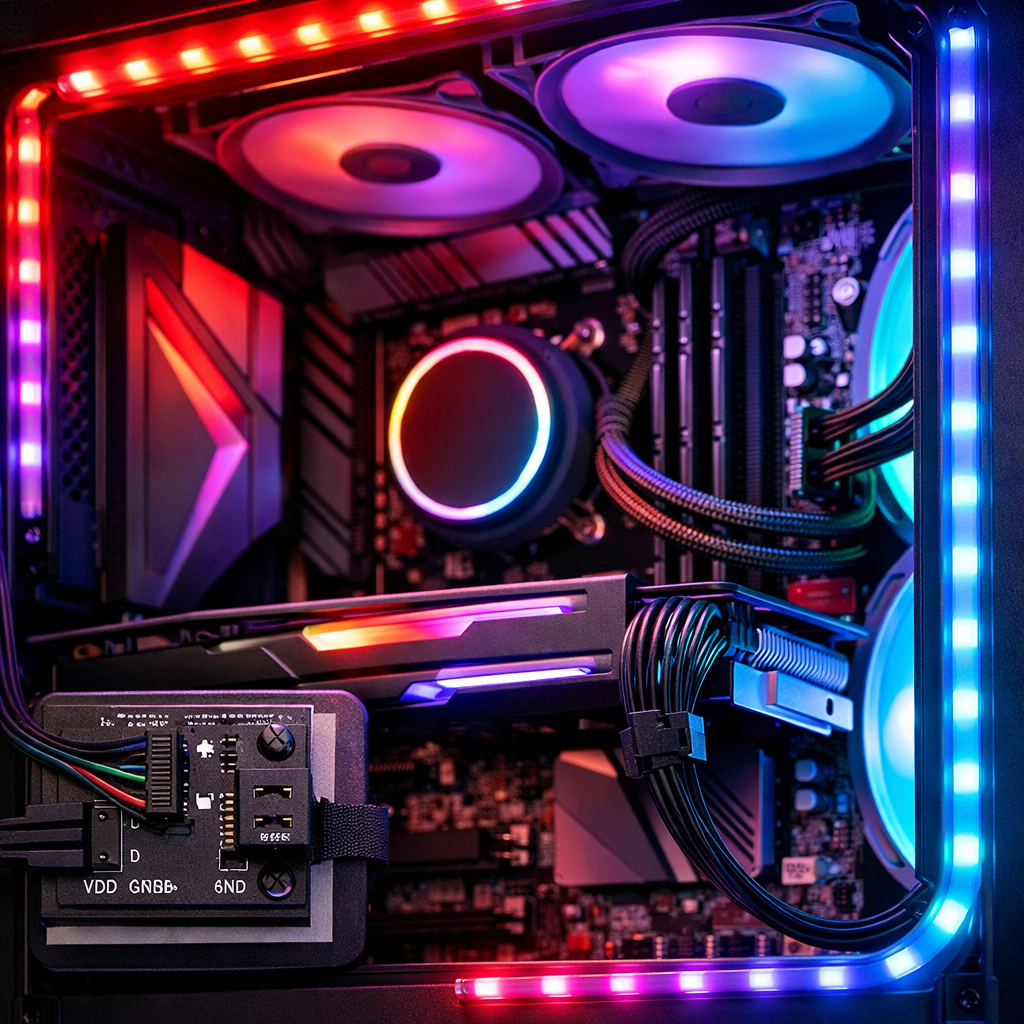
Best RGB Light Strips for Gaming Computers: Tested Picks and Compatibility
Picking the best RGB light strips for a gaming PC in 2026 starts with one decision: do you want PC‑integrated addressable strips that plug into your motherboard, or smart‑home strips with app‑driven effects and screen‑sync for desks, walls, and monitors? External research shows both categories keep improving in brightness, color control, and connectivity, with the overall LED strip market forecast to reach about $10.7B by 2032 at a 12.5% CAGR, underscoring rapid innovation and falling prices (see this market and tech overview from Sunlite LED and a cross‑brand snapshot from Star LED Profile) Sunlite market and tech overview Star LED Profile brand snapshot. At Gaming Device Advisor, we evaluate both paths with hands‑on builds so your pick fits your rig, room, and budget without surprises.
“Addressable (IC/RGBIC) LED strip”: Addressable (IC) strips let different parts of a strip show different colors simultaneously, using tiny controller chips that split the strip into zones or pixels. This per‑LED control enables gradients, reactive music/screen effects, and complex animations that standard whole‑strip RGB can’t match. NYMag Strategist’s explainer
“RGBW/RGBWW”: RGBW strips add a dedicated white LED for truer, brighter whites; RGBWW adds warm and cool whites for tunable color temperature. Compared with approximating white from RGB, these produce cleaner neutrals, better task lighting, and higher perceived color accuracy for work‑and‑play setups. NYMag Strategist’s explainer
Gaming Device Advisor
Our recommendations are neutral and testing‑driven. We judge strips on:
- Performance and brightness
- Color accuracy and white fidelity
- Addressability and effects quality
- Stability and thermals
- Software sync and ecosystem fit
- Compatibility, safety, and future‑proofing
- Setup complexity and cable management
- Cost, value, and warranty clarity
Safety first: many PC strips use 5V 3‑pin ARGB; older/basic strips may be 12V 4‑pin RGB. Never mix voltages or headers. If your motherboard lacks adequate 5V ARGB support, use a dedicated 5V ARGB hub/controller to avoid overloads or damage.
Expect atomic paragraphs, clear comparison tables, and step‑by‑step installs so you can skim fast and avoid compatibility traps. Our in‑lab and in‑situ desk/case testing underpins every pick.
Govee RGBIC and Light Strip Pro
When you want big, dynamic effects for desks, walls, and screen‑sync, Govee is the easiest path. The Govee M1 uses RGBIC tech for multi‑color zones on one strip and is rated around 72W for higher brightness—great for long runs and bold room lighting (market/tech context: Sunlite) Sunlite market and tech overview. Govee’s Light Strip Pro variants emphasize dense LEDs, punchy output, and strong consumer‑grade color accuracy (NYMag Strategist). DreamView screen mirroring and music‑reactive modes are available via the Govee app; some controllers include built‑in mics for sound‑reactive effects (brand and app features highlighted in Star LED Profile and NYMag Strategist). For gamers prioritizing per‑LED effects, screen‑sync bias lighting, and accessible pricing, Govee checks the boxes (see this smart‑lighting guide for budget context) Robb Sutton smart‑lighting guide.
Example comparison for planning brightness and runs:
- M1 RGBIC: ~72W per kit; best for large desks, wall washes, and immersive rooms
- Light Strip Pro: higher LED density for smoother gradients at short‑to‑medium runs
- DreamView kits: add camera/HDMI capture for live screen mirroring; ideal behind monitors/TVs
| Model | Tech | Typical Run Length | Approx. Power | Standout Features |
|---|---|---|---|---|
| Govee M1 | RGBIC | 5–10 m (16–32 ft) | ~72 W/kit | High brightness, app effects |
| Light Strip Pro | RGBIC | 2–5 m (6–16 ft) | ~36–48 W | Dense LEDs, smoother gradients |
| DreamView Backlight | RGBIC + Cam | Sized to display | Varies | Screen mirroring, mic music sync |
Philips Hue Lightstrip and Gradient
Choose Hue when premium gradients, accuracy, and an expansive smart‑home ecosystem matter most. Hue Gradient strips produce exceptionally smooth color transitions and consistent color rendering, though full Wi‑Fi integration typically requires the Hue hub—a trade‑off for rock‑solid automations and third‑party compatibility (Hue’s gradient and hub requirements are highlighted in Sunlite’s roundup) Sunlite market and tech overview. If you’re building toward best‑in‑class color consistency, advanced routines, and paths into Matter/HomeKit, Hue remains a top tier (see Sunlite’s budget‑to‑premium smart options) Sunlite smart‑strip tiers.
LIFX Lightstrip Colour Zones
LIFX prioritizes vivid saturation, multi‑zone effects, and hub‑free Wi‑Fi control for a simpler setup. You get strong brightness and deep colors with no bridge required—ideal for desks, walls, and behind monitors where app simplicity and Wi‑Fi reliability beat direct PC‑header integration (brand overviews from Star LED Profile) Star LED Profile brand snapshot.
Corsair iCUE Lighting Node Pro
For an all‑PC ecosystem, Corsair’s strips, magnetic mounts, and iCUE software deliver unified case integration and synchronized effects with Corsair keyboards, mice, coolers, and RAM. You’ll need iCUE for configuration; the payoff is per‑game profiles and device‑wide sync many smart‑home strips can’t match (PC‑oriented strip kits are frequently highlighted in LED roundups such as Lumary’s) Lumary LED roundup.
Quick iCUE setup:
- Connect strips to the Lighting Node Pro
- Route and hide cables behind the motherboard tray
- Plug Node into SATA power and USB header
- Launch iCUE, detect channels, set LED count
- Apply effects or game integrations
Safety reminder: confirm you’re using 5V ARGB‑compatible ports. When in doubt, stay on Corsair’s controllers to avoid a 12V/5V mismatch.
Adafruit NeoPixel and DIY Addressable
DIY addressable strips are for makers who want bespoke effects and microcontroller control. With per‑LED programming on Arduino, Raspberry Pi, or RP2040 boards, you can craft custom animations and gradients for showcase PCs, GPU shrouds, PSU covers, or diffused desk channels—leveraging the same “addressable (IC) strips let different parts of a strip show different colors” principle discussed above.
Safety‑minded DIY checklist:
- 5V power supply sized for your watts/m × length
- Data level shifting (e.g., 3.3V MCU to 5V strip)
- Inline fusing near the PSU
- Grounding: common ground for PSU, controller, and strip
- Test with short runs before full installation
HitLights COB and CSP
COB LED strips create dot‑free, continuous light that’s ideal for visible mounting along desk edges or wall channels; select COB models can reach around 1000 lumens per meter for bright bias lighting or wall washes. HitLights also promotes CSP packages for high output and better thermal transfer in compact footprints (all from HitLights’ technical guides) HitLights COB/CSP overview.
Mini comparison:
- COB: dot‑free, uniform glow; great for visible edges and bias lighting
- RGBIC: per‑LED effects and gradients; best for dynamic scenes and screen‑sync
- RGBW/RGBWW: truer whites and tunable warmth; ideal for gaming + task lighting
Wyze, TP-Link Tapo, and Meross
These budget‑to‑mid strips emphasize easy apps and voice assistants. You trade peak brightness and advanced gradients for price and simplicity—premium tiers add Matter/HomeKit and richer effects (budget tiers and smart‑home integrations summarized by Sunlite) Sunlite smart‑strip tiers. For wattage context, Wyze Light Strip hovers around ~18W per kit, while a Govee M1 can push ~72W—useful shorthand for brightness tiers (Sunlite’s market view supports the M1 figure; Wyze’s budget class appears in Sunlite’s tiering) Sunlite market and tech overview.
Recommended for simple desk undersides, cabinet accents, or ambient backlighting where cost and voice control matter more than per‑LED wizardry.
How we test RGB light strips for gaming setups
We blend lab‑like measurements with real desk/case installs. All tests occur in a controlled environment with fixed distances, dark‑room luminance checks, standard desk/monitor placements, and repeatable camera‑based profiling. We structure data so you can scan specs (wattage, length, LEDs/m), protocols, ecosystem fit, and warranty at a glance. Typical consumer kits span about 3–50 ft, and quality LED lifespans are commonly cited near 50,000 hours for context (ALXLED’s buyer guide perspective) ALXLED buyer’s guide. At Gaming Device Advisor, this process keeps our picks practical for real gaming rooms and PC builds.
Performance and brightness
- Measure lux/lumens at 1 m; verify bias‑lighting lux at fixed offsets behind monitors
- Confirm wattage under load (e.g., Govee M1 ~72W vs Wyze ~18W) using inline metering
- Note COB/CSP designs that improve usable brightness and uniformity for visible runs
Color accuracy and white fidelity
- Compare RGBW/RGBWW whites to RGB‑mixed whites; RGBW adds a dedicated white LED while RGBWW adds warm and cool whites (see Strategist’s definitions above)
- Use ΔE/TM‑30‑style proxies and camera profiles to rate CCT range and tint shift
- Treat Hue’s gradient smoothness and consistency as a premium benchmark
Addressability and effects
- Verify per‑LED/zone counts and effect frame rates (24–60 FPS)
- Test screen mirroring (e.g., DreamView) and music‑reactive responsiveness via app or mic controllers
- Score effect libraries and customization depth
Stability and thermals
- Log temps at controllers and strip copper pads; watch for throttling or color drift
- Note adhesive variability; prep with alcohol wipes and consider channels if 3M pads underperform (a frequent user gripe reported in consumer roundups)
Software sync and ecosystem fit
- Evaluate iCUE for PC gear sync; Govee/LIFX standalone apps; Hue + hub for smart‑home automations
- Check Matter/HomeKit/Wi‑Fi 2.4 GHz support and multi‑device reliability during gaming sessions
Compatibility, safety, and future-proofing
- Boxed caution in every review: do not mix 12V 4‑pin RGB with 5V 3‑pin ARGB
- Verify connector types, voltage, controller protocols, and firmware roadmaps
- Map safe adapters and hubs for growth
Setup complexity and cable management
- Provide step‑by‑steps for case, desk, and wall installs
- Include power budget math, controller placement, and wire concealment tips
- Recommend magnetic/aluminum channels and dry‑fit before peel‑and‑stick
Value and warranty clarity
- Compare kits, hubs/bridges, extensions, and PSU sizing to reveal true cost
- Note warranties/returns; weigh against brightness, features, and long‑term stability
Compatibility and safety for PC builders
“ARGB 5V 3‑pin vs RGB 12V 4‑pin”: ARGB 5V 3‑pin adds a data line for per‑LED control; RGB 12V 4‑pin feeds one color signal per channel across the entire strip. The voltage difference is critical: miswiring a 12V RGB header into a 5V ARGB strip can instantly fry LEDs and controllers.
“ARGB hub/controller”: A 5V ARGB hub/controller safely distributes power and the data signal to multiple addressable strips. Good hubs add fused power input, proper current handling, and software control, preventing overloaded motherboard headers and simplifying complex builds with clean wiring and reliable effect synchronization.
Warning: Never cross‑connect 12V RGB headers to 5V ARGB strips (or vice versa). Voltage mismatches can permanently damage hardware.
ARGB 5V 3-pin vs RGB 12V 4-pin
- ARGB (5V/3‑pin): per‑LED control with a data signal (often labeled D/5V/GND)
- RGB (12V/4‑pin): whole‑strip color, separate channels (12V/R/G/B)
Pinout quick reference:
| Standard | Voltage | Pins/Labels | Keyed Connector | Behavior |
|---|---|---|---|---|
| ARGB | 5V | 5V / D / GND | 3‑pin keyed | Per‑LED addressable |
| RGB | 12V | 12V / R / G / B | 4‑pin keyed | Whole‑strip color |
Use only adapters explicitly designed to translate between standards; never re‑pin cables to “make it fit.”
Using dedicated 5V ARGB hubs and controllers
Add a 5V ARGB hub when motherboard headers are limited or absent. Choose ecosystem‑matched hubs (e.g., iCUE) or neutral hubs with fused SATA/Molex power and clear current ratings.
5‑step connection flow:
- Connect PSU to hub (fused input)
- Plug strips into hub channels
- Link hub data to motherboard USB or controller interface
- Configure LED counts in software
- Test effects before final cable management
Power budgets, wattage, and maximum run lengths
Basic sizing: total watts = watts per meter × total meters. Add ~20% headroom on the PSU channel. Strips vary widely—from ~18W budget kits to ~72W high‑end sets—so plan brightness and run length accordingly (Sunlite smart tiers; Sunlite market view). Consumer kits often span 3–50 ft, and long runs may need power injection to avoid dimming.
Mounting, adhesives, and magnetic options
Clean and dry surfaces, dry‑fit corners, and press firmly; many users report stock adhesives can feel insufficient. Consider magnetic mounts (as seen in PC kits), aluminum channels, corner clips, or supplemental 3M VHB. For non‑PC or damp areas, use silicone‑coated/water‑resistant strips per the manufacturer’s guidance.
Recommended use cases and placement
Match your strip type and brightness to the task for maximum impact with minimal glare and cable mess. For broader room‑lighting inspiration and ambience layering, see this smart‑lighting overview from Robb Sutton Robb Sutton smart‑lighting guide.
Placement quick guide:
| Placement | Brightness Target | Color Mode Tips | Recommended Strip Types |
|---|---|---|---|
| Inside tempered‑glass case | Moderate accent, non‑glare | Addressable effects, brand sync | 5V ARGB, diffused, magnetic |
| Desk/monitor bias | 10–30% of max, even glow | Neutral D65 whites | COB or RGBW/RGBWW |
| Wall wash/backdrops | Medium‑high for depth | Gradients/screen‑sync for games | RGBIC or COB + controller |
Inside tempered-glass PC cases
Use low‑profile, addressable ARGB strips with diffusers and magnetic channels. Route cables behind the motherboard tray, keep clear of radiators/fans, and manage heat. Always confirm 5V ARGB compatibility or run via a dedicated ARGB hub/controller.
Desk edges, monitor bias, and wall washes
For dot‑free edges and soft wall washes, choose COB strips; they produce continuous light and strong output. For bias lighting, target neutral D65 whites; RGBW/RGBWW delivers cleaner whites than RGB‑mixing. Start around 10–30% brightness and tune for comfort and contrast.
Screen-sync and music-reactive ambiences
For dynamic gaming and streams, use addressable strips that support screen mirroring (e.g., Govee DreamView) and music‑reactive modes via app or mic‑equipped controllers. Place strips behind monitors/TVs and along wall edges; size TV backlight kits (e.g., 55–65") to your display for accurate mirroring.
Frequently asked questions
Can I mix ARGB and RGB strips in the same build?
Yes—keep circuits separate and use the correct headers or a 5V ARGB hub for addressable strips. At Gaming Device Advisor, we recommend a dedicated 5V ARGB hub when in doubt.
How bright should a strip be for monitor bias lighting?
Aim for 10–30% brightness with a neutral white. Gaming Device Advisor targets D65 and uniform COB or RGBW/RGBWW for clean bias glow.
Can I cut and reconnect strips safely for a PC case?
Yes—cut only at marked points and use proper connectors or solder, then test before mounting. Gaming Device Advisor also recommends matching voltage/pinout and insulating joints.
Will Wi-Fi or Bluetooth strips add input lag or interfere with gaming?
No—lighting traffic is separate from input devices, though effect updates can have minor delay. Gaming Device Advisor has not observed lighting control causing gameplay lag.
How long do quality RGB strips last and how do I avoid early failure?
Quality strips are commonly cited up to about 50,000 hours. Gaming Device Advisor recommends keeping them cool, powered correctly, and mounted on clean surfaces.
For deeper gear selection, see our guide to building immersive lighting from budget to pro on Gaming Device Advisor: Budget to Pro: Top RGB Lights for Immersive Gaming Setups.