Best Yokes and Joysticks for Flight Simulator 2024 on Xbox
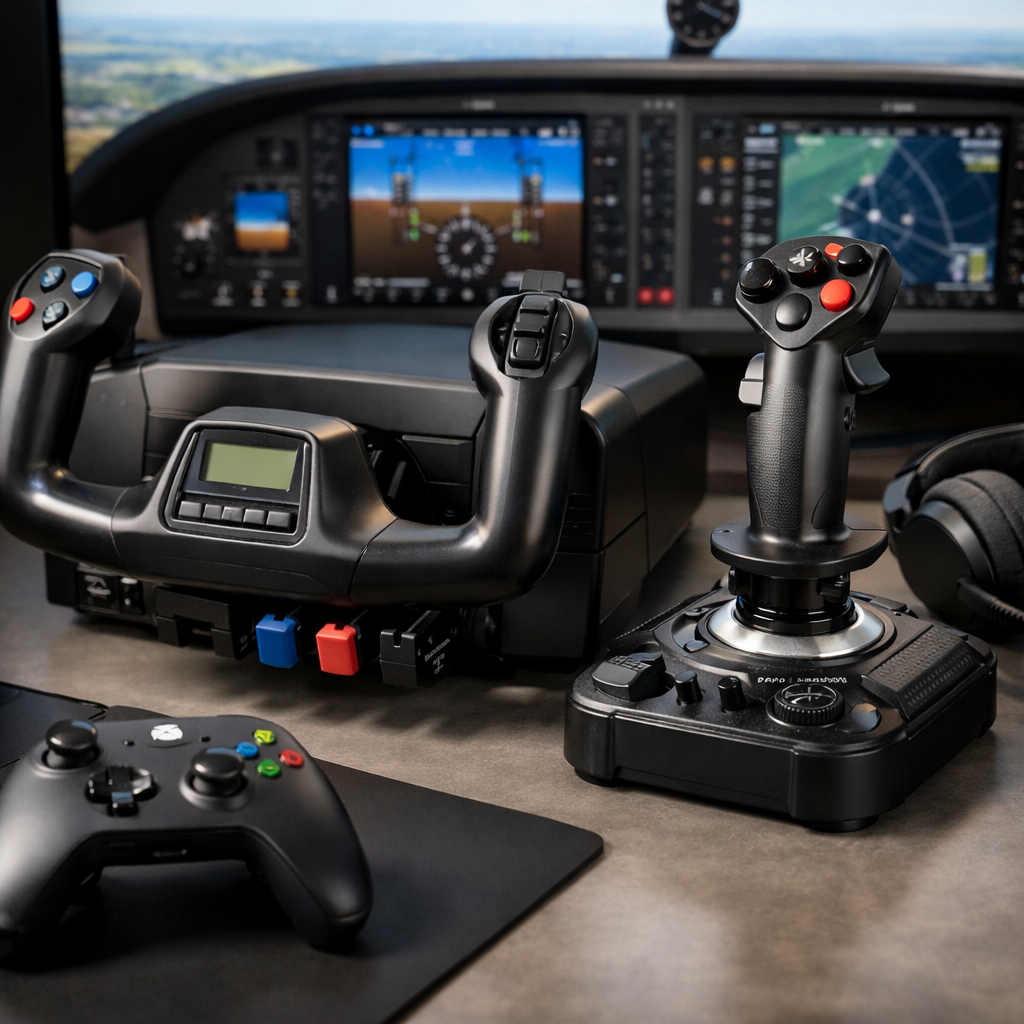
Best Yokes and Joysticks for Flight Simulator 2024 on Xbox
If you’re flying Microsoft Flight Simulator 2024 on Xbox, the right control hardware can turn bumpy pattern work into smooth, confident sessions. Below, we cut through PC‑only options to highlight truly Xbox‑friendly yokes, joysticks, and HOTAS, explain what support to expect on console, and show you how to set up devices safely so your mappings stick and your ports survive. Short answer: go with explicitly Xbox‑compatible sticks and yokes, update firmware before first flight, map core axes in MSFS 2024, and validate that bindings persist after a restart. Our picks span compact HOTAS for tight desks to integrated yoke systems for GA and airliner immersion. At Gaming Device Advisor, we favor Xbox‑certified gear and conservative setup steps that protect your console and profiles.
Gaming Device Advisor
Our recommendations are neutral, configuration‑safe, and console‑first. We evaluate gear across seven pillars:
- Control depth: axis travel, precision, and switch density for real‑world flows.
- Compatibility: verified Xbox support and in‑game presets for MSFS 2024.
- Software ecosystem/sync: profiles, updates, and cockpit‑build friendliness.
- Cost/value: performance per dollar and credible upgrade paths.
- Stability/performance: mechanical smoothness, sensors, and latency.
- Setup complexity: mounting, cabling, and mapping effort on Xbox.
- Safety/future‑proofing: firmware validation, supported connections, and return‑proof buying.
Our safety‑first stance means we verify firmware, avoid unsupported adapters/hubs, and provide step‑by‑step Xbox mapping flows. That reduces risk of port strain, bricked peripherals, or profile losses—especially important on console. We keep this guidance Xbox‑specific to minimize guesswork.
How hardware support works on Xbox
Xbox recognizes only licensed or explicitly supported peripherals. Many beloved PC yokes and throttles rely on Windows drivers that don’t exist on console. Expect plug‑and‑play for Xbox‑labeled devices; everything else may require manual mapping—and some functions simply won’t appear. Gaming Device Advisor cross‑checks OEM support statements and MSFS 2024 presets before recommending a device for console use.
Definition — Xbox peripheral support (40–50 words) Xbox peripheral support is Microsoft’s device recognition path for controllers and accessories. On Xbox, only certified USB/HID devices and officially supported profiles are reliably detected in games. PC‑only drivers don’t apply, so unsupported axes, encoders, or displays may not be exposed to MSFS 2024 at all.
What users report today
- With cloud streaming (e.g., GeForce NOW), some flight controls are only partially recognized; users have noted gaps like trim and brakes and even mappings that reset between flights, with Logitech gear often faring better than certain VelocityOne combinations in that context (user reports on the MSFS forums discuss these caveats) community thread insights and specific examples of partial recognition/reset behavior.
- Local, native Xbox play remains the most reliable route for MSFS 2024 peripherals.
Simple setup flow (treat like a mini flowchart; this is our default Xbox validation path)
- Check the manufacturer’s Xbox support page for your model.
- Confirm an MSFS 2024 control preset exists (or plan to bind manually).
- Update firmware on a PC/Mac if required.
- Plug in and test core axes (pitch/roll/yaw/throttle).
- Map remaining buttons/switches.
- Restart the game/console to confirm bindings persist.
How to choose yoke or joystick for Xbox
Fast decision framework
- Aircraft focus: GA/airliners point to yokes; combat, helicopters, and mixed flying often favor a joystick/HOTAS for Xbox.
- Desk space: sticks/HOTAS are compact; yokes need more depth for pitch travel and usually a quadrant.
- Budget: sticks start cheaper; integrated yoke systems cost more but improve immersion for long‑haul flows.
Definition — yoke vs joystick (HOTAS) (40–50 words) A yoke replicates real aircraft columns with two‑handed control and long, linear pitch/roll travel for smooth trim and flare. A joystick/HOTAS concentrates many functions on a hand stick plus separate throttle, creating a compact, high‑access setup ideal for mixed flying, combat, and small desks.
Quick guidance
- Yokes: feel natural for long GA and airliner legs; built‑in trim/switch arrays streamline checklists and flows (noted by sim hardware reviewers comparing yoke vs stick trade‑offs).
- Joysticks/HOTAS: compact, versatile, and great for combat/space sims; easy fit on small desks.
- Many pilots keep both: yoke for GA/airliners, stick/HOTAS for combat or heli/space.
Comparison at a glance (Xbox‑relevant picks)
| Device | Type | Est. price | Xbox support notes | Sensors (key) | Buttons/Hats | Desk footprint | Strengths / Limitations |
|---|---|---|---|---|---|---|---|
| Turtle Beach VelocityOne Flightstick | Stick + mini throttle | $139.99 (per Turtle Beach guide) (pricing reference) | Native Xbox profiles common | Not disclosed | 27 programmable inputs (same TB guide) | Very compact | Plug‑and‑play value; fewer dedicated switches than full systems |
| Turtle Beach VelocityOne Flight | Yoke + throttles | $349.99 (same TB guide) | Console‑friendly, integrated system | Not disclosed | Rich switch array | Medium–large | Two‑hand immersion; needs careful mounting and space |
| Honeycomb Alpha Flight Controls (incl. XPC) | Yoke (base) | Varies by retailer | Check Xbox profile/edition before purchase | Steel shaft on ball bearings (review coverage) | Multiple toggles + magneto | Medium–large | Smooth mechanics; requires separate throttle/pedals |
| Thrustmaster TCA Yoke Pack Boeing Edition | Yoke + quadrant | Premium tier | Confirm Xbox support/preset | — | Robust airline‑style controls | Large | Boeing‑licensed feel (noted by PC Gamer) |
| Thrustmaster T.Flight HOTAS One | HOTAS (stick + throttle) | Typical $60–$80 | Xbox‑labeled model | 10‑bit precision; 5 axes; 14 buttons (spec summary) | Moderate | Small–medium | Fast start on a budget; shorter throws, lighter build |
| Thrustmaster T.16000M FCS (pack) | Stick + throttle (mid‑range) | ~ $170 (pack) | Check Xbox edition/support | — | High button density with ministick on throttle | Medium | Precise control; confirm console preset/firmware |
| Thrustmaster HOTAS Warthog | Premium HOTAS | $400+ | Primarily PC‑oriented | — | Extensive controls | Large/heavy | Elite realism; verify Xbox support before buying |
Note: Include rudder pedals on Xbox only if the model lists console support; test toe brakes and rudder axes first.
Turtle Beach VelocityOne Flightstick
Why it’s a strong Xbox starter
- Plug‑and‑play ease on console, high button density, and solid value make it an excellent single‑box solution for mixed flying or small setups. Turtle Beach lists it at $139.99 with 27 programmable buttons in its buyer guide on yokes vs sticks (that guide also outlines use‑cases and budgets) Turtle Beach’s yoke vs stick overview.
- Windows Central also singled it out with a Best Award pick for Xbox among flight sticks, reflecting strong out‑of‑box support in MSFS Windows Central’s best flight sticks rundown.
Who it’s for
- Xbox flyers who want one device that just works, compact desk users, and those splitting time between GA and jets. Gaming Device Advisor often points Xbox newcomers here for a low‑risk start.
Setup tips
- Update console and device firmware, select the MSFS 2024 preset, then save aircraft‑specific profiles.
Limitations
- Fewer dedicated switches than a full yoke/throttle system. Add rudder pedals later for coordinated turns and toe‑brake control.
Turtle Beach VelocityOne Flight
A full, console‑friendly yoke/throttle solution for GA and airliner immersion. The integrated system encourages two‑handed workflows and quick access to trim, flaps, and lighting. The onboard screen helps visualize mappings and system states on supported titles, as covered in product roundups of best flight sticks and yokes pocket‑lint’s best joystick list notes the VelocityOne Flight display. For Xbox desks, we like its integrated approach to cut clutter and simplify profiles.
Setup guidance
- Mount securely to prevent flex during full pitch travel, test deadzones for smooth flare, and calibrate throttle detents for your aircraft. Confirm current firmware and in‑game profiles; document any unmapped functions and bind alternates.
Honeycomb Alpha Flight Controls
Realism‑first mechanics
- The Alpha’s steel shaft rides on ball bearings for smooth, consistent travel—one reason it remains a favorite among simmers seeking authentic yoke feel (shown in hands‑on review coverage) detailed Alpha features in a video review. The XPC variant is known for 180° rotation and precise magnetic sensing, contributing to fine bank control.
Workflow‑friendly layout
- Multiple toggles for lights and a five‑way magneto switch support cold‑and‑dark starts and checklist flows that mirror GA training.
Buying and Xbox notes
- Availability has fluctuated in 2024–2026; buy from reputable retailers and verify current support status and profiles before committing community availability discussion. Gaming Device Advisor advises confirming the exact Xbox‑ready edition and planning for a separate throttle quadrant and pedals on Xbox.
Mapping strategy
- Start with the closest MSFS 2024 preset (or blank), bind pitch/roll, trim up/down, brakes, flaps, and essential lights. Save per‑aircraft.
Thrustmaster TCA Yoke Pack Boeing Edition
A Boeing‑licensed option with a professional feel geared to airliner enthusiasts building console‑friendly workflows. Its ergonomics and smoothness pair naturally with 737/787 patterns, IFR practice, and airline SOP‑style flows; map autopilot functions, trim, and flaps to yoke‑reachable inputs for minimal HUD time. Confirm current Xbox support and an MSFS 2024 preset (and firmware utilities) before purchase—this pack is officially Boeing‑licensed with a pro bent as highlighted in enthusiast roundups PC Gamer’s joystick guide references the Boeing‑licensed pack. On Xbox, we flag firmware and preset checks as must‑dos.
Thrustmaster T.Flight HOTAS One
What it is
- A budget, Xbox‑labeled HOTAS that gets you flying fast with decent fidelity and a clear upgrade path. It includes 10‑bit precision, 5 axes, and 14 action buttons, covering core MSFS controls without external software on console feature snapshot in a training‑oriented guide.
Who it’s for
- First‑time Xbox simmers, casual flyers, and space/combat crossover players who want an affordable start. Gaming Device Advisor often recommends this as a first HOTAS on Xbox.
Setup tips
- Begin with the default Xbox preset; adjust sensitivity curves for gentle flare and bank; try both split and attached throttle configurations for comfort.
Limitations
- Lighter plastics and shorter throws limit fine control. Consider pedals for better yaw/brake modulation or a future move to a mid‑range HOTAS.
Thrustmaster T16000M FCS
A mid‑range stick with precise control and a credible upgrade path for serious simmers on a budget. Expect a well‑featured throttle with adjustable friction and a ministick for sensor/camera control, with bundle pricing often around the $170 mark (noted in enthusiast comparisons of mid‑range HOTAS “sweet spots”) Virtual‑Flight’s joystick vs yoke review.
Recommendations
- Pair with rudder pedals for coordinated turns and better crosswind landings. Map trim and view hats logically. Verify you’re buying an Xbox‑supported edition, update firmware, and load the closest MSFS 2024 preset before binding the rest. We consider it a strong step‑up if your desk can fit the throttle.
Thrustmaster HOTAS Warthog
A premium, industrial‑grade HOTAS prized for realism, metal construction, and long‑term durability. On Xbox, treat it as a PC‑centric option: confirm console compatibility and profiles before considering, and be ready for higher cost, larger desk footprint, and potential lack of console drivers. It’s commonly named among the best for PC realism by major outlets (see the PC Gamer reference linked earlier).
Rudder pedals and throttle add-ons on Xbox
Add‑on pedals and throttles dramatically improve workload management and realism on console—especially for short‑field work, crosswinds, and airliner power management. On cloud services, community reports note partial recognition and mapping resets for some combinations; Logitech gear has fared better than certain VelocityOne setups on GeForce NOW, and bindings can reset between sessions, so validate persistence when streaming (as discussed in user threads) forum overview and specific user experience.
Recommendations
- Prioritize Xbox‑labeled SKUs and vendor‑listed console support.
- Test basics first: rudder left/right and toe brakes analog range.
- Typical first mappings: rudder axis, left/right brakes, parking brake toggle, reverse thrust detent or button, and mixture/prop if available.
5‑step add‑on setup
- Update firmware via PC/Mac if required.
- Plug directly into the console (avoid unpowered hubs).
- In MSFS 2024, bind rudder and brakes; verify analog response.
- Set deadzones to prevent brake drag; test taxi/takeoff/landing.
- Restart to confirm bindings persist.
Common pitfalls
- Digital‑like brake behavior if axes aren’t recognized, no dedicated trim axis on some add‑ons, and re‑binding after title updates.
Setup and safety checklist for Xbox peripherals
Use the following as Gaming Device Advisor’s baseline console checklist.
- Place and mount securely; ensure full yoke pitch/roll travel and avoid cable strain on Xbox USB ports.
- Update device firmware and Xbox system software before first flight.
- Connect directly to console USB; avoid unpowered hubs or risky adapters.
- In MSFS 2024: load the closest preset, bind pitch/roll/yaw/throttle, trim, brakes, flaps, and gear.
- Tune deadzones and sensitivities; test taxi, takeoff, approach, and landing.
- Save per‑aircraft profiles; export/back up if the ecosystem allows.
- Power‑cycle Xbox and re‑test to confirm persistence; keep a written map of critical binds for quick recovery.
- Cockpit‑build note: if adding LED lighting, match ARGB/RGB standards to the correct controller; never mix 5V ARGB into 12V RGB headers via improvised adapters.
Compatibility and firmware verification steps
- Confirm an Xbox‑specific model/SKU and the official support statement on the manufacturer’s site.
- Check that MSFS 2024 lists a preset for your device (or read release notes/changelogs for recent additions).
- Download the vendor firmware utility; note minimum versions recommended for Xbox stability.
- Read known‑issues pages for mapping gaps (e.g., trim/brakes) and update cadence.
- Validate the retailer’s return policy and vendor support contacts.
- On arrival: update firmware first, then test on a clean MSFS profile before importing old mappings.
Budget and space planning for cockpit builds
Facts and framing
- Joysticks/HOTAS are more desk‑friendly and generally cheaper, while yokes demand more depth but add GA realism and workflow familiarity (as commonly summarized by sim hardware guides).
- Entry bundles under $100 sometimes include a month of Xbox Game Pass Ultimate promos in retail packs—useful for new simmers testing the waters promo examples from a retail hub.
- The $150–$350 range is a sweet spot for serious simmers seeking better sensors, throws, and controls without going full premium.
Suggested build paths
- Budget: Xbox‑labeled HOTAS + optional pedals later.
- Balanced: VelocityOne Flightstick or T.16000M FCS + pedals.
- Immersive: VelocityOne Flight or TCA Yoke Pack + pedals.
Space checklist
- Yoke throw clearance; throttle quadrant reach; pedal floor grip on carpet/tile; cable routing that avoids console port strain.
Future‑proofing
- Buy Xbox‑certified first; add PC‑grade gear only if you plan hybrid PC use.
Frequently asked questions
Will my yoke or joystick work with Flight Simulator 2024 on Xbox?
Yes—most Xbox‑labeled sticks and yokes work plug‑and‑play; Gaming Device Advisor recommends confirming manufacturer Xbox support and an MSFS 2024 preset before you buy.
Do I need drivers or firmware updates for Xbox compatibility?
You won’t install PC drivers on Xbox, but firmware matters. Gaming Device Advisor recommends updating firmware on a PC/Mac if required, then reconnecting to Xbox.
Can I use rudder pedals and separate throttles on Xbox?
Yes, if they’re Xbox‑compatible models. Gaming Device Advisor suggests mapping axes in MSFS 2024 and verifying persistence after restarts.
Why do some buttons or trim wheels not map correctly on Xbox?
Xbox may not expose every PC control the same way, so certain axes appear as digital inputs. Gaming Device Advisor recommends rebinding to alternates and saving per‑aircraft profiles.
Is cloud gaming compatible with flight peripherals on Xbox?
Cloud services can limit peripheral recognition, so some controls work only partially. Gaming Device Advisor recommends local Xbox play with supported devices and current firmware for best results.