Does Grounded 2 Support Ray Tracing, Quick Resume, 120Hz?
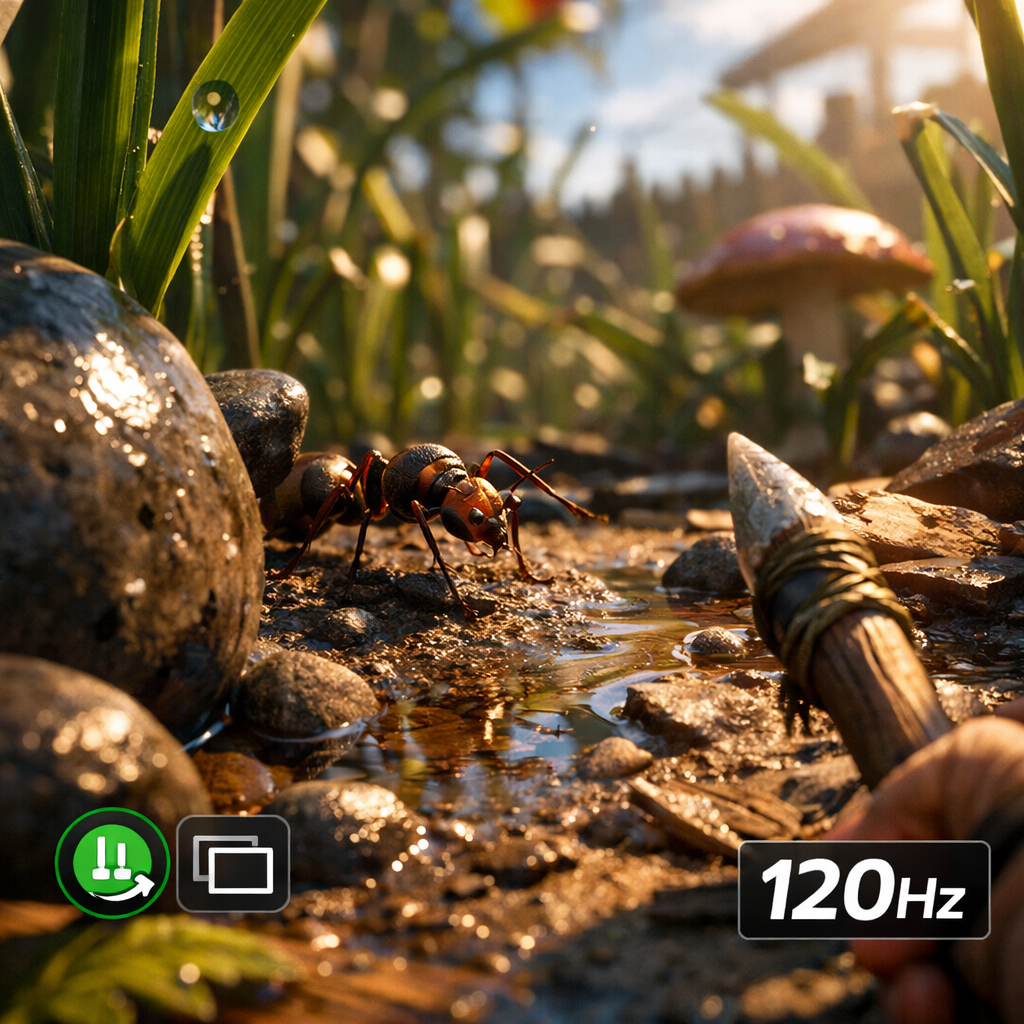
Does Grounded 2 Support Ray Tracing, Quick Resume, 120Hz?
Grounded 2 is arriving across Xbox Series X|S and PC with a lot of excitement—and questions about next-gen Xbox features. Here’s the short answer: as of the latest public info, ray tracing is unconfirmed, Quick Resume behavior is unspecified, and consistent 120Hz is unlikely at launch for most players. Early coverage points to limited graphics presets without advanced toggles, and demanding performance on high settings that curbs high-refresh ambitions. That lines up with the Xbox listing that names platforms but not features, and with patch notes focused on optimization rather than new rendering modes. Below, we summarize what’s known today and how to verify features as the game evolves. Gaming Device Advisor will update this guide as features are confirmed or change post‑patch.
Summary of next-gen feature support
Based on current reporting and platform listings, Grounded 2 does not explicitly advertise ray tracing, a 120Hz mode, or validated Quick Resume support at launch. PC-focused hands-on coverage describes preset-driven graphics with no ray tracing mention, while even top-end GPUs struggled to sustain 60 FPS on the highest preset, suggesting limited headroom for 120Hz without major compromises. A subsequent performance patch delivered measurable gains, but coverage still flags instability and pop-in that keep 120Hz out of reach for most players. The official Xbox page confirms Xbox Series X|S and Windows availability—likely via Game Preview—without listing next‑gen feature specifics. We’ll validate on retail builds and major updates.
“Quick Resume is an Xbox operating-system feature that snapshots a game’s active state to fast internal storage, letting you swap between several titles and return within seconds without reloading. Actual behavior can differ by game because networking, save logic, and developer validation all affect suspend-and-resume reliability.”
Sources: PC Gamer hands-on for presets/performance context, PCGamesN patch analysis for uplift (9–26%), and the Xbox store listing for platforms.
Ray tracing status on PC and Xbox
There’s no official developer or publisher confirmation of ray tracing for Grounded 2 on PC or Xbox as of the available materials. Coverage of the current build notes streamlined presets and no advanced lighting toggles, reinforcing the absence of an explicit RT option in menus (as seen in the PC Gamer hands-on). Community chatter exists, including a Steam discussion thread referencing “forced raytracing” under High preset—treat this as unverified until an in-game toggle or patch note confirms it. Broader RTX talk on Reddit frames support as speculative rather than planned. Gaming Device Advisor will flag any confirmed RT options when they land in menus or patch notes.
Recommended-spec pages citing modern GPUs such as RTX 3080 or RX 6800 XT signal contemporary rendering targets and higher-fidelity presets, not that RT features are present. Treat any “RTX” shorthand on requirements pages as capability of the GPU family, not a feature guarantee.
Ray tracing simulates how light travels and reflects in real time to create lifelike shadows, reflections, and global illumination. It’s more accurate than traditional rasterization but demands far more GPU power. Games often offer toggles for RT shadows, reflections, or ambient occlusion.
Citations: PC Gamer hands-on; Steam discussion thread; Reddit RTX discussion; Can You RUN It page.
Quick Resume behavior on Xbox Series consoles
Grounded 2 is listed for Xbox Series X|S and Windows via Game Preview, but the official page does not state Quick Resume support or reliability. In practice, OS-level Quick Resume often works by default, yet games that rely on persistent online states or have complex save logic sometimes disable or limit it for stability. In our testing methodology, we retry Quick Resume after significant patches to gauge stability.
“Quick Resume on Xbox Series consoles preserves multiple games by parking them to the SSD, so you can jump back in almost instantly instead of cold-booting each title. Online dependencies, background patches, or developer restrictions can break a suspended state, so success and stability vary across updates.”
Practical check: start Grounded 2, switch to another game to force a suspend, and then resume. If the state isn’t preserved—especially after patches or disconnects—reload from the main menu and avoid suspending during online-heavy sequences.
Citation: Xbox store listing.
120Hz and high-refresh performance expectations
Current PC testing points to 120Hz being a stretch at launch, especially at higher presets. PC Gamer reported the highest preset failed to hold 60 FPS even on an RTX 4090 paired with a Core i9‑13900K, implying scant headroom for 120 FPS without steep visual cuts. A later update improved performance by 9–26% per PCGamesN’s testing, yet sustained 120Hz remained impractical due to ongoing frame drops and texture pop‑ins—issues that typically require deeper optimization or high-quality upscalers to overcome.
A 120Hz display refreshes its image 120 times per second, enabling up to 120 frames per second to be shown for smoother motion and lower input lag. To benefit, the game must render near 120 FPS consistently, which depends on optimization, graphics settings, and hardware.
Citations: PC Gamer hands-on; PCGamesN patch analysis.
What our testing focus means for buyers
Gaming Device Advisor evaluates more than raw FPS. With Grounded 2’s early optimization state, we prioritize:
- Smoothness under realistic presets over peak framerates
- Thermals and acoustics for quieter sessions
- Build quality and upgrade paths for future features like DLSS/FSR or expanded settings
For high settings at 1080p–1440p, target GPUs in line with recommended specs—RTX 3080 or RX 6800 XT—and CPUs like Ryzen 5 5600X or Core i7‑10700K to maintain headroom while keeping noise and temperatures in check. Pair with a VRR-capable monitor to smooth dips below your target frame rate and leave room for future patches and upscaler support.
Citation: Can You RUN It page.
How to verify features at launch and beyond
Use this checklist to confirm capabilities as updates roll out:
- Official sources: Check the Xbox store page and patch notes for new mentions of ray tracing, 120Hz modes, or Quick Resume status.
- System requirements: Watch for updates that add DLSS/FSR/RT notes on requirements aggregators.
- Reputable testing: Look for post‑patch graphics menu changes and quantified performance deltas from hands‑on reports. At Gaming Device Advisor, we use this same workflow when verifying features across patches.
Feature verification quick-guide:
| Feature | Where to check | What confirmation looks like |
|---|---|---|
| Ray tracing | In-game video settings; patch notes | A visible RT toggle (shadows/reflections/GI) or patch note entry |
| Quick Resume | Xbox dashboard; store page | Quick Resume icon; reliable return-to-state after suspend |
| 120Hz mode | Video settings; console display info | Explicit 120Hz/Performance Mode; FPS counter near 100–120 with VRR enabled |
Citations: Xbox store listing; Can You RUN It page; PC Gamer hands-on; PCGamesN patch analysis.
Best hardware practices for smoother performance
Baseline spec targets
- Aim to meet or exceed GTX 1070/RX 5700/Arc A580-class GPUs, Ryzen 5 2600/Core i5‑8400, and 16 GB RAM. Multiple listings also recommend 16 GB for best results. Plan around a roughly 40 GB install footprint for storage.
- For PCs near minimum spec, budget headroom for future patches.
PC tuning tips
- We start on Medium or High, then first reduce shadow quality and foliage density; avoid maxing the top preset given current reports.
- Use the built-in resolution scaler; at present testing notes generic upscaling (no DLSS/FSR) so balance scale and sharpness carefully.
- Target 60–90 FPS to pair with VRR for smoother motion; recent patches offer 9–26% uplift but expect dips.
Xbox guidance
- Enable VRR on a compatible display (TV or monitor) in console settings.
- Prefer stability/performance modes if offered over “quality” at launch.
- After major patches, re‑test Quick Resume by suspending and resuming; if flaky, relaunch from cold to avoid state corruption.
Citations: Can You RUN It page; GameSystemRequirements listing; PC Gamer hands-on; PCGamesN patch analysis.
Frequently asked questions
Does Grounded 2 have a ray tracing toggle on PC?
There’s no confirmed ray tracing toggle as of the latest reports, and graphics options appear preset-based with few advanced controls. Gaming Device Advisor will update this page if patch notes or menus explicitly add RT.
Will Quick Resume work reliably for Grounded 2 on Xbox?
It may function since Quick Resume is OS-level, but reliability can vary by game and update. Test after patches and check our guide or the Xbox store page for any changes.
Can most systems hit 120Hz in Grounded 2?
Unlikely at launch for most players. Given early constraints even on high‑end PCs, Gaming Device Advisor recommends targeting 60–90 FPS with VRR until optimizations land.
What settings help stabilize frame rate without big visual loss?
At Gaming Device Advisor, we start from Medium/High, then lower shadows, foliage, and post‑processing before textures. Use the built‑in resolution scaler to hold a steady frame rate on mid‑range GPUs.
Where should I check for updated feature confirmations?
Review the Xbox store page and patch notes, system requirements pages, and Gaming Device Advisor’s updated coverage. Look for explicit mentions of ray tracing, 120Hz modes, or upscalers.