Expert Picks: Top OLED and 4K 144Hz Gaming Monitors
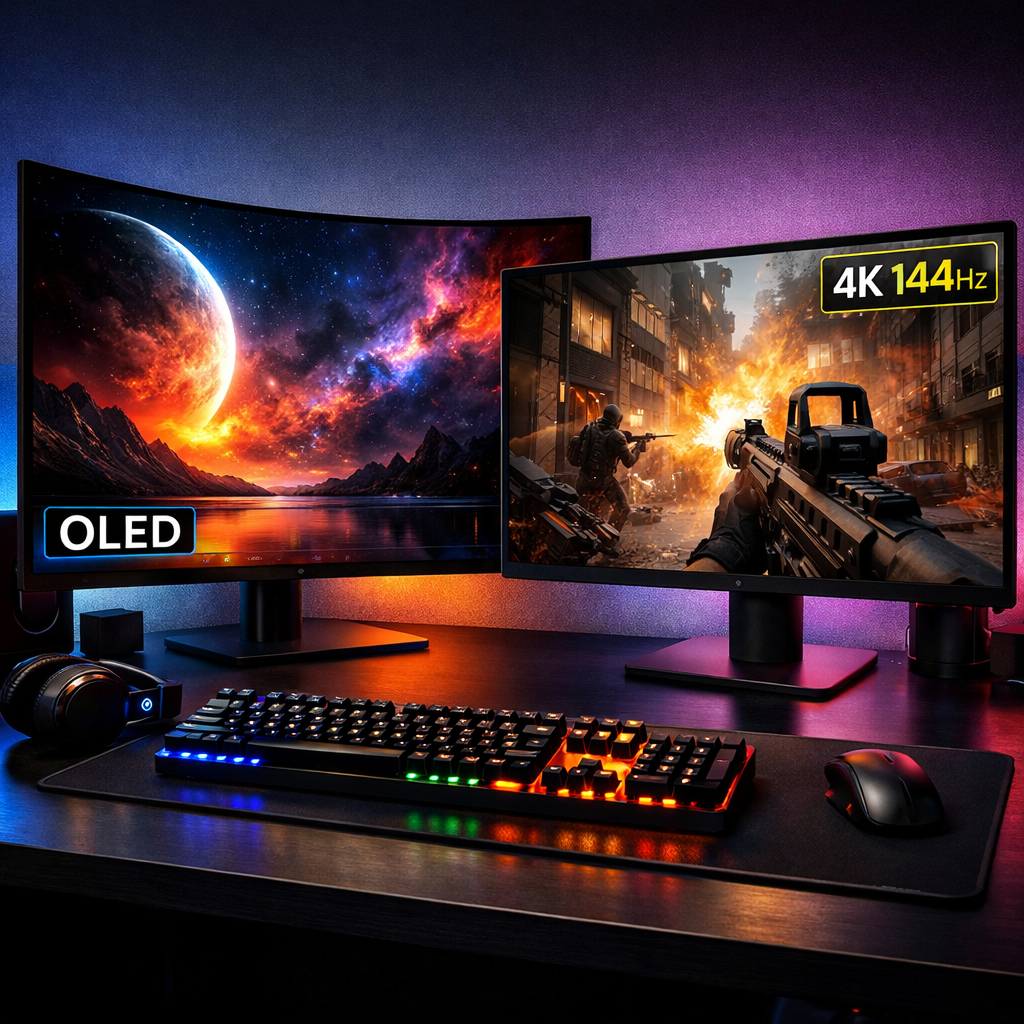
Expert Picks: Top OLED and 4K 144Hz Gaming Monitors
High refresh rate describes how often a screen updates each second. For gaming, 144Hz–240Hz (and higher) reduces motion blur and input lag, making fast action appear smoother and more responsive. This guide cuts through the hype to name the top gaming monitors with high refresh rates, with a focus on OLED and 4K 144–240Hz picks you can buy with confidence. We explain OLED vs Mini‑LED trade‑offs, what HDMI 2.1 and DisplayPort DSC actually unlock, and how to match refresh rate to your GPU so you don’t overspend for frames you can’t see.
Strategic Overview
What’s new for 2025–26:
- 4K at 240Hz is now feasible on desktop GPUs via DisplayPort DSC or HDMI 2.1, but demands careful cabling and settings.
- OLED/QD‑OLED panels continue to push HDR tone mapping and near‑instant response for elite motion clarity.
- Dual‑mode flexibility arrives: some OLEDs offer 4K/240Hz and esports‑grade 1080p/360–480Hz modes in one display.
Authoritative lab testing consistently shows that OLED panels deliver near‑instant pixel response and excellent motion clarity, while the latest Mini‑LEDs bring higher HDR brightness for bright rooms (see Tom’s Hardware best 4K gaming monitors and bandwidth guidance; Forbes’ monitor buying insights).
Gaming Device Advisor
Our picks favor standards literacy (HDMI 2.1, DisplayPort with DSC), transparent burn‑in warranty terms, and total cost of ownership over buzzwords. We recommend buying from official retailers for verifiable support, and we call out GPU, cable, and settings requirements so you reliably hit advertised refresh, HDR, and VRR features. Context: 4K/144Hz is now the premium baseline; 4K/240Hz exists, but it generally requires DSC or HDMI 2.1 and a powerful GPU to benefit (as emphasized by the Tom’s Hardware best 4K guide). Gaming Device Advisor compiles specs and policy details from official documentation and reputable lab reporting so our guidance stays practical and verifiable.
Asus ROG Swift PG27UCDM
Asus’s 27‑inch ROG Swift PG27UCDM is the flagship choice if you want razor‑sharp text, esports‑grade response, and uncompromised HDR at 4K/240Hz. Forbes named the PG27UCDM “Best Monitor Overall,” highlighting its 4K 240Hz spec, roughly 1,000‑nit peak HDR, extensive connectivity, and an MSRP around $1,199.99 (see the Forbes Best Monitor guide). OLED’s pixel‑level light control and extremely fast response minimize blur that persists on IPS, TN, or VA panels, which is why it feels so clean during fast camera pans.
Who should buy it:
- Competitive 4K players who demand maximum motion clarity.
- Creators who value color accuracy alongside gaming performance.
- Anyone ready with a DSC‑capable GPU, quality DisplayPort/HDMI 2.1 cables, and the know‑how to configure bandwidth‑heavy modes.
LG UltraGear 32GS95UE
If you want a larger canvas without sacrificing speed, the 32‑inch LG UltraGear 32GS95UE is a standout: it supports 4K at 240Hz and a 1080p 480Hz mode for esports flexibility (as covered by major monitor roundups). The 32‑inch 4K size lowers pixel density versus 27‑inch 4K, so sit slightly farther back or scale text for crispness. Budget time for OLED care features—pixel refresh and screen savers help preserve panel health over long desktop sessions.
Quick compare at 32 inches:
| Model | Panel | Size | Max Refresh | HDR Claim | Ports (core) |
|---|---|---|---|---|---|
| LG UltraGear 32GS95UE | OLED | 32" | 4K 240Hz; 1080p 480Hz mode | Near‑pixel HDR with per‑pixel dimming | DP (DSC), HDMI 2.1 |
| Alienware AW3225QF | QD‑OLED | 32" | 4K 240Hz | High peak HDR; per‑pixel contrast | DP (DSC), HDMI 2.1 |
| Samsung Odyssey Neo G8 | Mini‑LED VA | 32" | 4K 240Hz | High‑nit HDR with local dimming | DP, HDMI 2.1 |
Alienware AW3225QF
Alienware’s 32‑inch AW3225QF pairs a gentle curve with 4K/240Hz and punchy HDR. In testing, Display Stream Compression (DSC) was used to sustain 240 fps at 4K—proof that bandwidth and proper GPU/cable pairing matter if you want the full spec and VRR simultaneously (see Tom’s Hardware best 4K gaming monitors). The curve aids immersion for mixed play and productivity, while VRR behavior has been reported as stable when paired with current GPUs. Expect rich HDR with per‑pixel blacks and strong color volume typical of QD‑OLED.
Sidebar: What is Display Stream Compression (DSC)? DSC is a visually lossless compression standard built into DisplayPort and some HDMI implementations. It squeezes ultra‑high‑bandwidth video—like 4K at 240Hz—through today’s links without visible artifacts, allowing full resolution, refresh, HDR, and chroma to pass concurrently on supported GPUs and monitors.
AOC Q27G4ZD
The 27‑inch AOC Q27G4ZD brings OLED‑class contrast and speed into the mid‑hundreds price tier, making it an accessible on‑ramp for premium motion. PCMag calls it one of the most affordable 27‑inch QD‑OLED gaming monitors (see PCMag best gaming monitors). Compared to WOLED, QD‑OLED typically boosts color volume and perceived brightness in highlights, though text rendering can look fringed at certain subpixel layouts. As with any OLED, confirm burn‑in warranty coverage and enable on‑device mitigation (pixel shift/refresh).
Ideal if you want OLED smoothness and HDR pop without flagship pricing.
Samsung Odyssey Neo G8
Samsung’s 32‑inch Odyssey Neo G8 is the bright‑room HDR pick among 4K/240Hz options thanks to its Mini‑LED backlight. Forbes lists it at 3840×2160, 240Hz, and around 350‑nit SDR brightness, and discusses cooling, burn‑in, and QD‑OLED context when weighing panel tech (see the Forbes Best Monitor guide). Mini‑LED’s strength is searing highlights and higher sustained brightness; its limitation is blooming and elevated blacks versus OLED in dark rooms. If possible, demo a unit to judge blooming and uniformity before you commit.
Cooler Master Tempest GP27U
The 27‑inch Tempest GP27U is a value‑rich Mini‑LED at 4K/160Hz for buyers who want bright HDR and stable local dimming without chasing 240Hz. Tom’s Hardware includes it among the best 4K monitors, citing its Mini‑LED implementation at 160Hz (see Tom’s Hardware best 4K gaming monitors). Versus OLEDs, you’ll trade perfect blacks for better punch in sunlit spaces and typically higher sustained brightness in SDR.
Dimming/inputs snapshot:
| Model | Panel | Zones | Peak HDR (claim) | Core Inputs |
|---|---|---|---|---|
| Cooler Master Tempest GP27U | Mini‑LED IPS | 576 | ~1,200 nits | DP, HDMI 2.1 |
| AOC Q27G4ZD | QD‑OLED | Per‑pixel | ~1,000 nits class | DP, HDMI 2.1 |
How to choose between OLED and Mini LED for high refresh gaming
OLED emits light per pixel for near‑infinite contrast and instant response; Mini‑LED uses many backlight zones to drive higher brightness and HDR highlights but can show blooming and slower pixel transitions. Choose by room lighting, content type, and your tolerance for maintenance and warranty fine print.
| You prioritize… | Choose… | Why |
|---|---|---|
| Cinematic HDR in dark rooms, inky blacks | OLED/QD‑OLED | Per‑pixel dimming delivers true black and superb tone mapping. |
| Bright rooms and HDR highlight punch | Mini‑LED | Higher sustained nits and local dimming keep impact under ambient light. |
| Best value deals | Mini‑LED or QD‑OLED sales | Mid‑hundreds discounts appear more often than on 4K/240Hz flagships. |
HDR brightness and room lighting
- Mini‑LED advantages: higher HDR peaks and many dimming zones; for example, the AOC Q27G3XMN has 336 zones and DisplayHDR 1000 certification, delivering strong highlight control for budget HDR (see the Forbes Best Monitor guide).
- OLED excels at perfect blacks and natural HDR tone mapping but may have lower sustained SDR brightness; in sunlit spaces, Mini‑LED can look more impactful.
- Use cases:
- Bright daytime play: prefer Mini‑LED for sustained brightness and fewer ABL‑related dips.
- Dark‑room story games: OLED for black depth and halo‑free scenes.
- Mixed productivity: either works; consider text clarity, subpixel layout, and brightness stamina.
Burn-in safeguards and warranty terms
Burn‑in is permanent image retention from cumulative static content exposure on self‑emissive panels. Modern OLEDs mitigate it with pixel refresh, screen shift, and brightness management, but HUD‑heavy or desktop use over long sessions increases risk; warranties may limit coverage. CNET highlights that Alienware’s 34‑inch QD‑OLED included a 3‑year burn‑in warranty—illustrating how terms vary and why they matter (see the CNET monitor guide). Before buying, verify pixel refresh scheduling, logo dimming controls, and warranty clauses.
Motion clarity, input lag and response behavior
OLED’s ultra‑fast response times reduce blur versus IPS, TN, or VA, which helps competitive play and clean scrolling (see RTINGS gaming monitor tests). Prioritize low input lag, a wide/stable VRR range, and minimal overdrive overshoot. Choose 144Hz for easier stability; go 240Hz if your GPU can feed it.
Glossary:
- Response time (GtG): how quickly a pixel changes color; slower transitions smear motion.
- Input lag: delay from input to on‑screen response; lower is more responsive.
- BFI: black frame insertion; improves clarity by reducing persistence but can dim the image.
- VRR: variable refresh rate; syncs refresh to fps to cut tearing and stutter.
Connectivity, cabling and console compatibility
Some 4K/240Hz modes require DisplayPort with DSC or HDMI 2.1; weak cables or wrong ports can cap refresh or disable HDR/VRR (reinforced by Tom’s Hardware best 4K gaming monitors). Follow this checklist:
- Confirm your GPU’s DP/HDMI spec and DSC support.
- Use the monitor’s highest‑bandwidth input.
- Use certified Ultra High Speed HDMI or VESA‑certified DP cables at appropriate lengths.
- In OS/GPU control panel, enable 10‑bit/HDR and set the correct resolution/refresh.
- Toggle VRR on PC and in console settings. Gaming Device Advisor uses this same sequence when troubleshooting missed refresh or HDR/VRR modes.
DisplayPort DSC and bandwidth limits
Tom’s Hardware noted the AW3225QF used DSC to sustain 4K/240Hz, underscoring real‑world bandwidth demands.
Definition (≈45 words): Display Stream Compression compresses video data using a visually lossless algorithm so ultra‑high resolutions and refresh rates—like 4K at 240Hz with HDR—fit within DisplayPort 1.4 HBR3 bandwidth. When both GPU and monitor support DSC, you can run full spec without visible quality loss.
Quick unlock checklist:
- Enable DSC in the monitor OSD if present.
- Use DP 1.4 HBR3 or newer; prefer short, certified cables.
- Update GPU drivers; check vendor notes for DSC.
- Create/customize 4K/240Hz timing if it doesn’t auto‑populate.
HDMI 2.1 for PS5 and Xbox Series X
HDMI 2.1 enables 4K/120Hz with HDR and VRR on current‑gen consoles; use certified Ultra High Speed HDMI cables and enable VRR in console settings.
| Console | Max Refresh (4K) | Common Monitor Settings |
|---|---|---|
| PS5 | 120Hz | Game Mode on; VRR enabled; HDR on; ALLM if available |
| Xbox Series X | 120Hz | 120Hz + VRR; HDR10; Game Mode; ALLM |
USB-C, KVM and desk ergonomics
- USB‑C with DP Alt Mode and power delivery supports one‑cable laptop swaps.
- Integrated KVM lets one keyboard/mouse control multiple devices.
- Ergonomics checklist: height/swivel/tilt adjust, VESA mount support, stand depth vs desk depth, clean cable routing, and curve comfort at 27–32 inches.
Match refresh rate to your GPU
Guidance tiers:
- Midrange GPUs: target 4K/144Hz with upscaling; more consistent VRR and lower power/heat.
- High‑end GPUs: 4K/240Hz is achievable in lighter titles or with settings cuts; ensure DSC/HDMI 2.1 paths.
- Esports: dual‑mode displays (e.g., 1080p 360–480Hz) offer low‑latency ceilings for competitive play.
Models pushing 240Hz often need DSC/HDMI 2.1 and serious GPU throughput to justify the upgrade (as echoed by Tom’s Hardware’s bandwidth observations). Gaming Device Advisor frames these tiers to help you right‑size spend to performance.
4K at 144Hz versus 240Hz realities
- 144Hz pros: easier to drive, cheaper, broader HDR/VRR stability margins.
- 144Hz cons: lower motion ceiling.
- 240Hz pros: maximum smoothness and reduced blur at very high fps.
- 240Hz cons: stricter GPU/cabling needs; benefits diminish if fps falls into low VRR ranges.
Upscaling, frame generation and VRR stability
AI upscaling (DLSS/FSR/XeSS) renders at a lower resolution and reconstructs to 4K, boosting fps with modest latency cost. Frame generation inserts AI‑predicted frames to raise perceived fps but can add latency; use only if your latency budget allows.
Flow: enable upscaling → tune render resolution → add frame generation if needed → verify VRR range and Low Framerate Compensation (LFC) behavior.
Pricing, availability and where to buy safely
Expect flagship 4K/240Hz OLEDs like the PG27UCDM around $1,199.99 at launch‑adjacent pricing, while Mini‑LED values such as the AOC Q27G3XMN can dip under $300 with DisplayHDR 1000 and 336 zones (see the Forbes Best Monitor guide; Tom’s Hardware also tracks 4K values). Whenever possible, get hands‑on time to judge blooming, uniformity, and latency feel. Buy from official retailers for genuine warranties, clean returns, and reliable support.
Street pricing trends and total cost of ownership
- Street trends: mid‑hundreds QD‑OLED/Mini‑LED deals appear regularly; true 4K/240Hz OLEDs remain well above $1,000. Track seasonal sales.
- TCO reminders: budget for certified cables, optional extended warranties, OLED care (screen savers/logo dimming), and sturdy desk mounts/arms sized for 32‑inch panels.
Official retailers, returns and support expectations
Before purchase, confirm regional model codes, return windows, dead‑pixel policies, and burn‑in coverage.
Checklist:
- Warranty length and whether burn‑in is included/excluded.
- Support channels and turnaround; advanced exchange availability.
- Retailer return period and restocking policy. Gaming Device Advisor favors authorized sellers with clear, written policies to simplify support.
Frequently asked questions
Do I need DisplayPort 2.1 or is DisplayPort 1.4 with DSC enough for 4K at 240Hz?
DisplayPort 1.4 with DSC is typically enough for 4K 240Hz on supported GPUs and monitors. Gaming Device Advisor recommends using a certified cable and verifying DSC is enabled to hit full refresh without DisplayPort 2.1.
How risky is OLED burn-in for mixed gaming and desktop use?
With modern safeguards and reasonable settings, burn‑in risk is low for most mixed use; Gaming Device Advisor recommends enabling mitigation features and confirming warranty terms.
Is 4K 144Hz a better target than 4K 240Hz for most PCs?
Yes for many rigs—4K/144Hz balances sharpness, smoothness, and GPU demands. Gaming Device Advisor views 240Hz as worthwhile only if you can sustain very high fps or favor lighter titles with settings cuts.
Will these monitors work at 120Hz with current-gen consoles?
Most recent 4K gaming monitors with HDMI 2.1 support 4K/120Hz with VRR on PS5 and Xbox Series X. Use an Ultra High Speed HDMI cable and enable each console’s VRR/performance settings; Gaming Device Advisor’s setup checklists can help.
What brightness and HDR specs matter more than peak nits?
Prioritize sustained brightness, local‑dimming quality, color volume, and HDR tone mapping. Gaming Device Advisor weighs these real‑scene factors more than a single peak‑nits claim.