Grounded 2 on Xbox Series X|S: Quick Resume, Ray Tracing?
Grounded 2 on Xbox Series X|S: Quick Resume, Ray Tracing?
Grounded 2 is nearly here, and Xbox Series X|S players want quick answers: Will Quick Resume work? Is there ray tracing on Xbox? Official Xbox materials confirm platforms and Game Preview access, but they don’t explicitly detail Quick Resume or console-side ray tracing settings yet. Expect the usual Performance/Quality trade-offs on Series X|S and plan to verify options in-game at launch. PC community reports already show that enabling higher‑fidelity effects can impact frame rate, which hints at similar trade-offs on consoles. Below, we break down what’s confirmed, what to check on day one, and how to tune your setup for smooth survival—plus how Play Anywhere keeps your saves synced if you split time between console and PC.
What’s new in Grounded 2 for Xbox players
Grounded 2 enters Game Preview on July 29, 2025 for Xbox Series X|S and Windows, with day‑one availability on Game Pass and Xbox Play Anywhere cross‑saves so progress travels between console and PC under the same account (source: Xbox Wire showcase article).
https://news.xbox.com/en-us/2025/06/08/grounded-2-details-xbox-games-showcase/
The sequel expands the original’s backyard survival into Brookhollow Park with new biomes, rideable “buggies,” and a sturdier, unbreakable Omni‑Tool that streamlines building and gathering. Early write‑ups also call out smarter insect behaviors—like crickets that block with their forelegs—altering how you approach fights (source: Polygon early access impressions).
https://www.polygon.com/grounded-2-early-access-recommendation/
What changes moment‑to‑moment play:
- Ride, command, and fight with buggies; plus safe anthill traversal by partnering with a red soldier ant, as detailed in the Xbox Wire deep‑dive podcast.
https://news.xbox.com/en-us/podcast/xbox-games-showcase-deep-dive-grounded-2/ - The unbreakable Omni‑Tool reduces crafting churn and frees you to experiment more with builds (source: Polygon early access impressions above).
Next-gen features overview on Series X|S
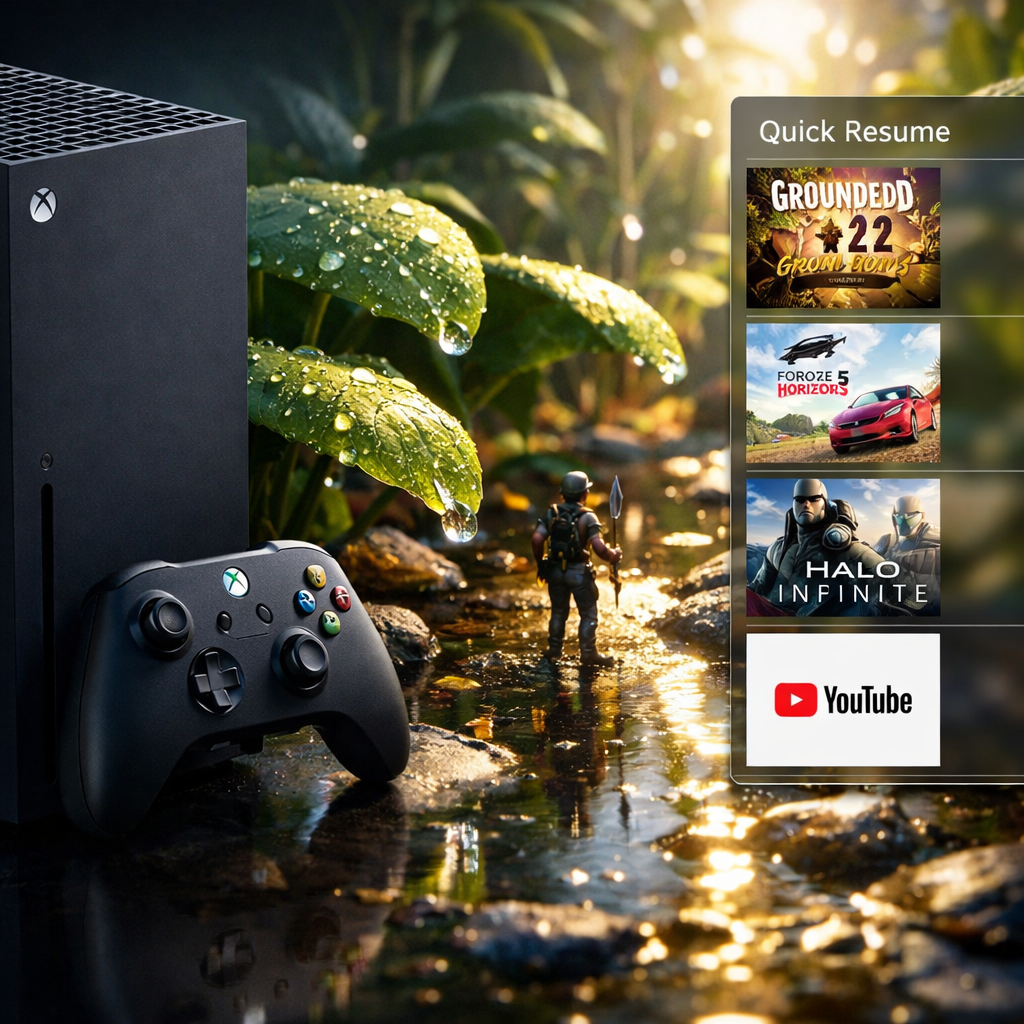
Quick Resume is an Xbox system feature that freezes the active state of several games so you can switch among them and continue within seconds, without full reloads. Support varies by title and patches; developers can disable or adjust it over time.
Official pages confirm platforms and Game Preview access but do not explicitly confirm Quick Resume or any console‑side ray tracing toggle in the materials we reviewed. Check the product page and patch notes at launch for final details (source: Xbox.com listing); Gaming Device Advisor will update this guide as features are confirmed.
https://www.xbox.com/en-US/games/grounded-2
Feature status at a glance:
- Confirmed: Series X|S support, Game Pass day‑one, Xbox Play Anywhere cross‑saves.
- Not yet verified in sources: Quick Resume, in‑game ray tracing toggle on Xbox.
Quick Resume support status on Series X|S
Quick Resume support isn’t confirmed in the official materials we reviewed; don’t assume availability at launch.
How to verify on your console:
- Launch the game, then open the Xbox guide to see if a “Quick Resume” tag appears.
- Go to Manage game and add‑ons > Compatibility info for system feature flags.
- After updates, recheck the product page and patch notes for changes.
Note: Some online or Game Preview titles adjust Quick Resume behavior post‑patch. Stability may vary during early access.
Ray tracing on Xbox Series X|S
Ray tracing simulates the physical behavior of light, calculating how rays bounce to produce accurate reflections, shadows, and global illumination. The results can look more realistic than rasterization, but the technique is compute‑intensive, often lowering frame rates unless balanced by performance modes or resolution scaling.
Official Xbox pages don’t confirm console ray tracing options as of this writing. On PC, community reports indicate ray tracing appears when using “High” graphics settings and can notably reduce performance—useful context for console trade‑offs (source: Steam community thread on RT and performance).
https://steamcommunity.com/app/2661300/discussions/0/600785168536671482/
At launch, check Video settings for a Performance vs. Quality toggle or an explicit Ray Tracing option on Xbox.
Performance modes and frame rate expectations
Most Series X|S games offer a Performance mode (higher fps) and a Quality mode (higher visual fidelity). Specific 60fps or 120Hz targets for Grounded 2 aren’t confirmed in the materials reviewed; verify in the in‑game menu and your TV’s info panel on release.
Quick selection guide:
- Pick Performance for smoother combat, traversal, and co‑op.
- Pick Quality for more detail and possibly RT‑adjacent effects, at lower fps.
On PC, performance appears sensitive to advanced settings and higher‑end effects; enabling them can drop fps—useful but not yet confirmed for Xbox (source: Reddit optimization discussion).
https://www.reddit.com/r/GroundedGame/comments/1me9nq9/great_easy_optimization_for_grounded_2_using/
Visual quality settings and trade-offs
- Prioritize motion clarity for combat readability. If Film Grain or Motion Blur toggles exist, try lowering or disabling them.
- Calibrate HDR after selecting your performance mode, since mode changes can shift tone mapping.
- PC players report large fps gains by trimming heavy effects in config—expect console presets to mirror similar trade‑offs between clarity and eye candy.
Storage, saves, and Xbox Play Anywhere considerations
Xbox Play Anywhere lets you buy a supported digital game once and access it on both Xbox consoles and Windows PCs with the same account. Entitlements and cloud saves carry across, enabling true cross‑saves and minimizing double purchases for players who swap between console and PC.
Grounded 2 supports Play Anywhere cross‑saves and is available day one with Game Pass; use the same Xbox account for seamless sync (confirmed in the Xbox Wire showcase article linked above). Reserve storage for patches, captures, and any future texture packs. File size wasn’t provided—check the Microsoft Store listing at launch.
Controller and accessibility essentials for comfort
- Review controller remap, aim sensitivity, and vibration intensity early; enable low‑latency modes if your TV supports ALLM.
- The game supports co‑op, and solo play benefits from bug companions that can help in fights—useful if you prefer less mechanical strain.
- Explore accessibility menus for subtitle size, colorblind filters, and detailed audio sliders to reduce fatigue in longer sessions.
How to choose the best display settings for Grounded 2
Follow this 5‑step setup:
- Set your TV to Game Mode/ALLM.
- Choose Performance or Quality in-game based on your priorities.
- Run Xbox HDR Game Calibration if you have an HDR display.
- Match console output to your TV’s native refresh (60/120Hz).
- Fine‑tune brightness and sharpness for foliage detail without haloing.
If you play mostly co‑op combat: Favor Performance for steadier inputs and clearer motion.
If you explore solo: Favor Quality for denser foliage, shadows, and potentially RT‑like effects.
60Hz vs. 120Hz at a glance:
| Aspect | 60Hz | 120Hz |
|---|---|---|
| Input latency | Good | Best (lower latency, snappier inputs) |
| Motion clarity | Solid | Clearer fast motion, reduced blur |
| Resolution trade‑offs | Often higher | Sometimes lower to maintain fps |
Recommended buying and return-safe retailers
- Buy digitally via the Microsoft Store/Xbox to enable Play Anywhere and simplify refunds; always read your region’s refund window and eligibility rules first.
- For accessories (controllers, SSD expansion, headsets), prefer retailers with 14–30‑day returns, clear warranty coverage, and responsive support chat/phone lines.
- Use payment methods with purchase protection and save order confirmations for warranty claims.
Gaming Device Advisor favors straightforward return policies and responsive support to reduce hassle if accessories don’t fit your setup.
How we verify features and sources
Gaming Device Advisor prioritizes official platform pages, developer communications, and hands‑on verification. We cross‑check community reports for consistent patterns before citing them. For unconfirmed console features like Quick Resume or RT toggles, we re‑check the Microsoft Store listing, Xbox Wire updates, and in‑game menus after each patch. Examples confirmed via official and editorial sources in this guide include Game Preview timing/platforms, Game Pass/Play Anywhere, buggies, Omni‑Tool, and Brookhollow Park setting. We update this guide as official details change.
Frequently asked questions
Does Grounded 2 support Quick Resume on Series X|S?
It’s not confirmed in the available official materials; check the Xbox dashboard Quick Resume tag after launch and monitor patch notes—Gaming Device Advisor will update this page as details are confirmed.
Is there a toggle to disable ray tracing on Xbox?
Official console settings haven’t been detailed in the sources we reviewed; look for a Performance/Quality toggle or a Ray Tracing option in the video menu at launch—Gaming Device Advisor will reflect any confirmed options here.
Will there be 60 fps and 120 Hz modes on Series X|S?
Specific frame‑rate modes aren’t confirmed; expect typical Performance/Quality choices on Series X|S and verify 60fps or 120Hz options in‑game and on your TV—we’ll update this guide once official details land.
Do saves carry between Xbox and PC with Play Anywhere?
Yes—Grounded 2 supports Xbox Play Anywhere, so your progress can carry between Xbox and Windows when you use the same account; we’ll note any changes here.
What should I do if performance seems worse after an update?
Switch to a Performance mode if available, restart the console, and check for hotfix notes; if issues persist, file feedback and monitor official patch updates—Gaming Device Advisor tracks major fixes here.