How to Enable and Manage Xbox Cross-Play Settings, Step-by-Step
How to Enable and Manage Xbox Cross-Play Settings, Step-by-Step
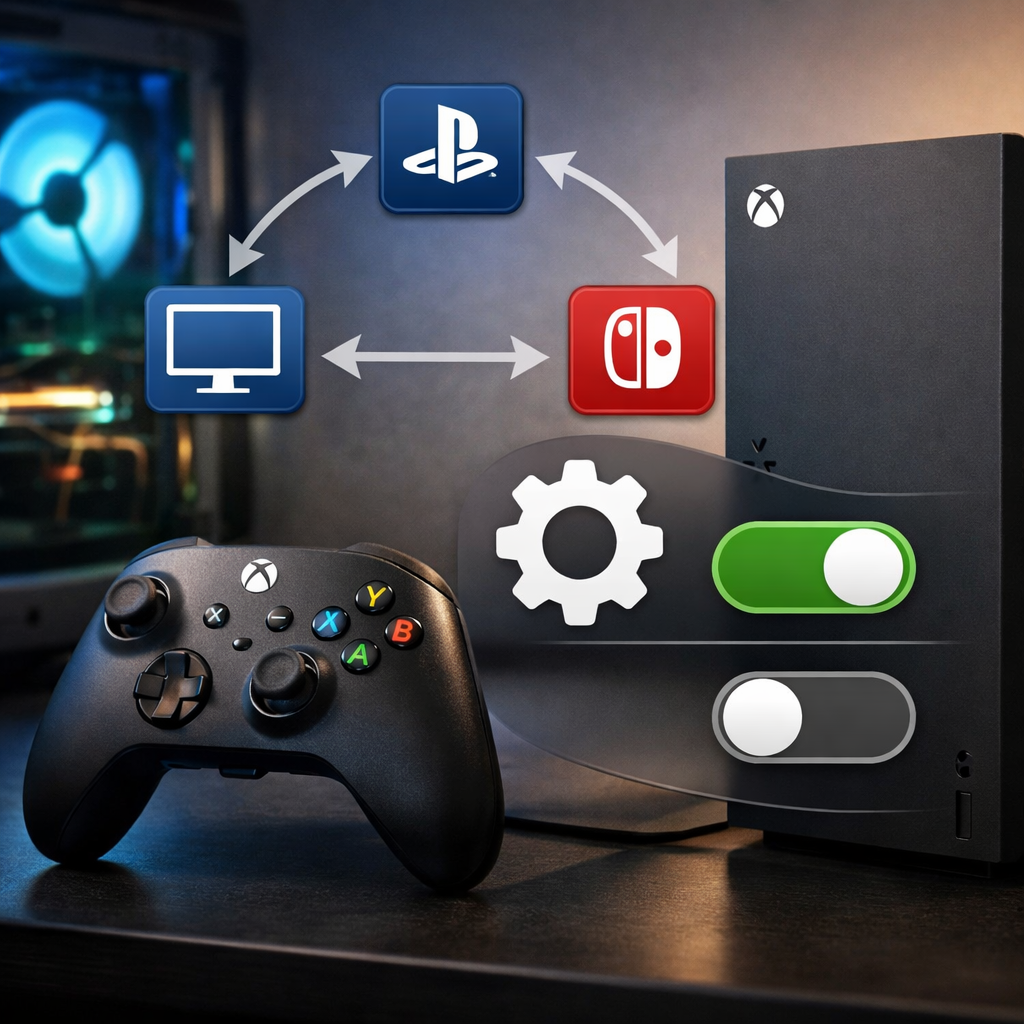
Cross-play opens your Xbox to friends on PlayStation, Nintendo Switch, PC, and mobile—if you configure the right toggles. This step-by-step guide from Gaming Device Advisor shows exactly how to enable and manage Xbox cross-play settings, link external accounts, adjust privacy and communication, and test party chat. You’ll also find family controls and troubleshooting to keep play safe and smooth. Follow the 7-step flow below, then dive into each section for detail.
Quick setup summary:
- Update your console and game
- Sign in with the correct Microsoft account
- Confirm your game supports cross-play
- Link external accounts (Epic/Microsoft/Mojang)
- Enable the game’s cross-play toggle
- Allow cross-network play in Xbox privacy settings
- Add friends and test party chat
What you need before enabling cross-play
Cross-play (cross-platform play) lets players on different systems—Xbox, PlayStation, Nintendo Switch, PC, and mobile—join the same multiplayer game and lobbies. It expands player pools and often reduces matchmaking wait times across platforms, especially in popular titles and off-peak hours, according to an industry overview of crossplay and industry standards.
To avoid backtracking, Gaming Device Advisor recommends confirming the basics first. Before you begin, have:
- A game that supports cross-play (e.g., Fortnite, Minecraft Bedrock, Call of Duty: Warzone).
- A current Xbox console with a Microsoft account signed in.
- Any required linked external accounts, such as an Epic Games account for Fortnite or the correct Microsoft/Mojang-linked profile for Minecraft.
Cross-save vs. cross-play: cross-save syncs your progress across devices; cross-play connects multiplayer across platforms—they’re related but not the same, as clarified in a broad guide to cross-platform gaming.
Tip from Gaming Device Advisor: buy supported titles and accessories from official or authorized sellers so your digital entitlements, refunds, and warranty terms are easy to resolve if something breaks or is delisted later.
Step 1: Update your Xbox console and the game
- On Xbox: Settings > System > Updates & downloads; install any pending console updates.
- Update your game: My games & apps > Manage > Updates; apply available patches.
- Relaunch the game to refresh network permissions.
Developers regularly ship multiplayer and cross-play fixes through patches, and Microsoft continues to roll out new cross-platform tools—staying updated prevents many invite and matchmaking errors.
Step 2: Sign in with the correct Microsoft account
Use the Microsoft account sign-in for Xbox that’s tied to your gamer profile, purchases, and friends. Go to Profile & system (Xbox button) > Add or switch > pick the correct profile. Mismatched accounts commonly cause missing friends, blocked invites, or locked privacy settings. If a family member used the console recently, double-check you’re on the right profile before moving on.
Step 3: Confirm your game supports cross-play
Not every game supports cross-play, and support can differ by platform. Check the game’s listing in the Xbox Store under Features or the official game site for “cross-platform” or “cross-play.” Many titles span Xbox, PlayStation, Nintendo, and PC, but specifics vary by franchise and publisher. Common examples: Fortnite, Minecraft (Bedrock), and Warzone.
Step 4: Link required external game accounts
Some games require linking an external account before cross-platform invites will work.
- Fortnite and Rocket League require an Epic Games account; link it in-game or via the publisher’s website.
- Minecraft Bedrock uses your Microsoft account across platforms; legacy Mojang accounts have migrated to Microsoft—ensure you’re using the same Microsoft/Mojang-linked identity everywhere.
Verify the same external account is linked on every device you use. If you link the wrong one on any platform, invites may fail or friends lists may not sync.
Step 5: Enable the in-game cross-play toggle
Most cross-play titles include a per-game toggle:
- Open the game’s Options/Settings > Multiplayer, Network, or Account.
- Turn on Allow Cross-Platform Play (wording varies).
- If you don’t see it after updating or linking accounts, restart the game.
Note: cross-save is often a separate setting or account-link feature that syncs progression; it does not, by itself, enable cross-platform matchmaking.
Step 6: Allow cross-network play in Xbox privacy settings
Your Xbox profile also needs permission to play with people on other platforms:
- Go to Settings > Account > Privacy & online safety > Xbox privacy > View details & customize > Communication & multiplayer.
- Allow cross-network play and adjust who can communicate with you via voice and text.
Microsoft defines cross-network play as the ability for your Xbox profile to join multiplayer sessions and communicate with players on non-Xbox platforms, governed by your privacy controls. If these are set too strictly, voice/text and invites from other platforms may be blocked.
Step 7: Add cross-platform friends and test party chat
- Add friends by Gamertag or email from your Xbox console or the Xbox app for easier typing and invite management.
- Create or join a party: press the Xbox button > Parties & chats > Start a party.
- Test voice chat with a small group. If you can’t hear others, check:
- The game’s in-game voice settings.
- Your Xbox privacy communication permissions (allow voice/text from friends or everyone, as preferred).
Manage cross-play preferences and safety
- Many games let you limit or disable cross-play to your platform only. Expect smaller player pools and longer queues when restricted.
- Set comfort-first controls: adjust Xbox privacy to allow friends-only voice/text, and use block or mute in both Xbox and in-game menus.
- Under the hood, Xbox services provide invites, matchmaking, and secure voice/text across platforms, though each title may present options differently based on its integration.
- Gaming Device Advisor generally recommends friends-only voice/text unless you’re intentionally joining open lobbies.
Family settings for child accounts
Child accounts use family privacy rules that can restrict cross-network multiplayer and communication.
- A parent/organizer can configure these in Settings > Account > Family or from the family’s online safety settings.
- Set age-appropriate controls first (who can communicate, who can invite), then enable cross-play per game.
- Periodically review friend lists, party settings, and recent players to keep communication age-appropriate.
- Gaming Device Advisor favors a friends-first approach, relaxing settings gradually as kids mature and needs change.
Troubleshooting common cross-play issues
| Issue | Quick fix |
|---|---|
| Invites fail or friends don’t appear | Update the console and game, then relaunch. Confirm the same external account is linked on all platforms. |
| “Cross-network play is disabled” message | Revisit Xbox privacy settings and allow cross-network play and communication under Communication & multiplayer. |
| Can’t hear party voice across platforms | Test a party with one friend; check Xbox privacy chat permissions and the game’s voice settings. Ensure headsets are set as default input/output. |
| Game has no cross-play toggle | Verify the title actually supports cross-play in its store listing or official site. Some modes or regions may be excluded. |
| Long matchmaking or empty lobbies | Turn cross-play back on, broaden regions if available, or try peak hours. Some titles temporarily limit cross-play during updates. |
| Account-linked content missing | Sign in to the correct Microsoft account and re-link external accounts. Restart the game to resync entitlements. |
If issues persist, check the game’s official support channels and the Xbox network status for outages. Developers frequently push multiplayer and cross-play fixes—keeping everything updated reduces recurring errors. Gaming Device Advisor also recommends revisiting the quick setup steps before deeper fixes.
When to disable cross-play for competitive balance
Consider turning cross-play off if you’re concerned about input differences (controller vs. mouse/keyboard), region-based lobbies, or anti-cheat parity in certain modes. Many games offer an in-game toggle to restrict matchmaking to your platform. Test both settings: with cross-play on, queues are usually faster; with it off, you may get tighter input-matched lobbies, albeit with longer waits.
Quick pre-match checklist
Run through these before sending invites—Gaming Device Advisor’s go-to preflight:
- Console and game updated.
- Signed into the correct Microsoft account.
- Game supports cross-play and the in-game toggle is enabled.
- Required external accounts linked (Epic/Microsoft/Mojang).
- Xbox privacy: cross-network play and communication allowed.
- Friends added (Gamertag or Xbox app) and party chat tested.
Frequently asked questions
Do I need Xbox Live Gold or Game Pass to use cross-play?
You need online multiplayer access based on the game; many free-to-play titles don’t require a subscription, but most paid console multiplayer does (via Game Pass Core/Ultimate). Gaming Device Advisor recommends checking the game’s listing to confirm.
How do I disable cross-play on Xbox if I change my mind?
Go to Settings > Account > Privacy & online safety > Xbox privacy > Communication & multiplayer and disable cross-network play, then turn off the in-game cross-play toggle. Gaming Device Advisor recommends turning it off in both places.
Why can’t I join friends on other platforms even with cross-play on?
Update your console and game, confirm external accounts are linked correctly, and allow cross-network communication in Xbox privacy. Gaming Device Advisor notes some games limit cross-play by mode, region, or platform.
How do parental controls affect cross-play and communication?
Child profiles follow family privacy rules, which can block cross-network multiplayer and voice/text. Gaming Device Advisor recommends a parent allow multiplayer and set communication permissions before cross-play parties work.
Does cross-play impact performance or matchmaking quality?
Cross-play usually shortens queue times by enlarging the player pool. Gaming Device Advisor suggests disabling it in-game if you prefer tighter input matching, knowing wait times may increase.
Links referenced:
- Xbox cross-network play settings: support.xbox.com/en-US/help/hardware-network/connect-network/multiplayer-cross-network-play
- Xbox services multiplayer overview: learn.microsoft.com/en-us/gaming/gdk/docs/services/multiplayer/overviews/live-multiplayer-intro?view=gdk-2510
- Microsoft’s new cross-platform tools and ongoing improvements: gamesbeat.com/microsoft-to-launch-new-tools-that-enable-cross-platform-play-across-windows-xbox-and-mobile-devices
- Industry overview of crossplay and benefits: meegle.com/en_us/topics/crossplay/crossplay-and-industry-standards
- Cross-platform basics and cross-save vs. cross-play explanation: oreateai.com/blog/unlocking-the-world-your-guide-to-crossplatform-gaming/0f1acbc4a67cd4bc256a39ce33fcff04