How to find Xbox Cloud Gaming and Game Pass Ultimate streamable titles
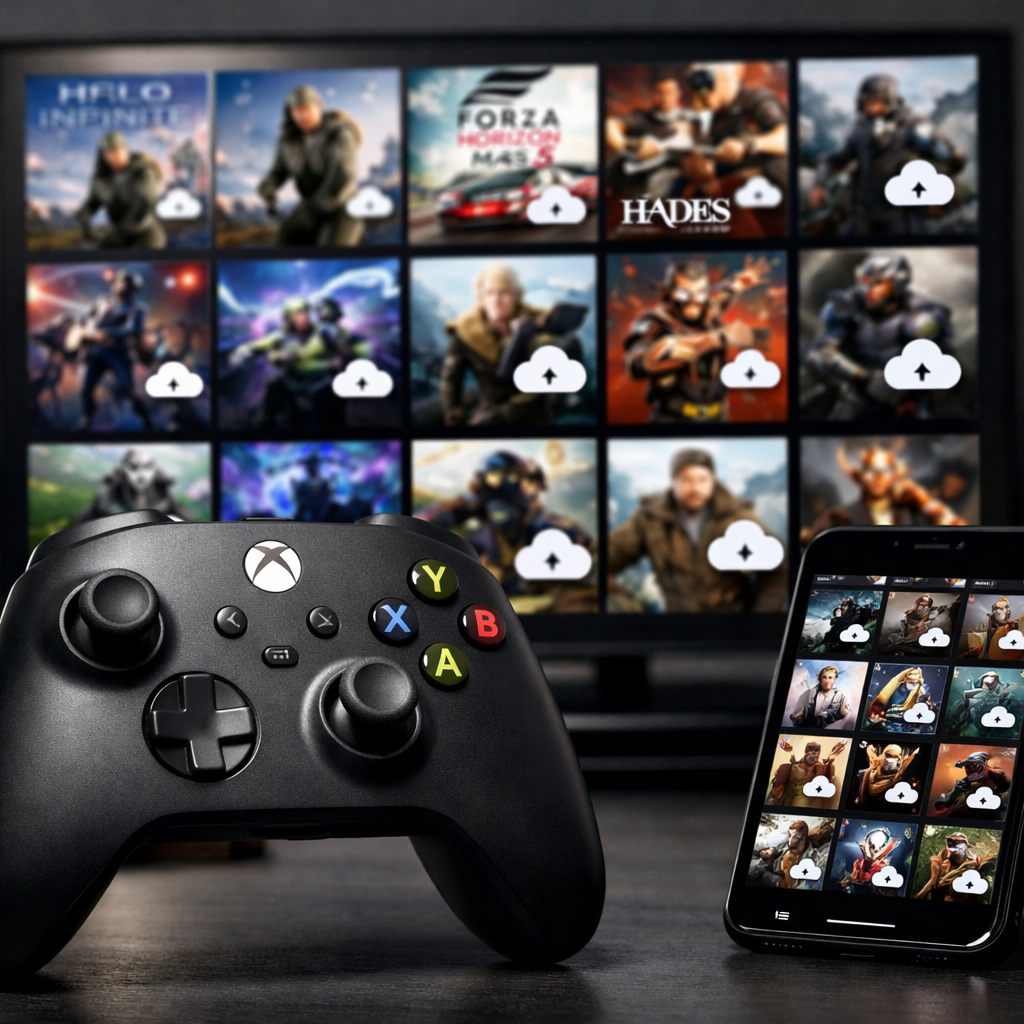
How to find Xbox Cloud Gaming and Game Pass Ultimate streamable titles
Finding every game you can stream right now comes down to three checks: your plan and region, Microsoft’s live cloud gallery, and whether owned titles are eligible to stream. Start at xbox.com/play to see the authoritative list, then filter for Cloud tags and confirm plan access on the Game Pass games page. If you prefer the app, use the Cloud filters there, but verify counts on the web whenever results look off. At Gaming Device Advisor, we default to the web gallery as the source of truth so you spend time playing, not troubleshooting.
Know your Game Pass plan and region support
“Cloud-enabled” means a game can be launched from the cloud on supported devices without a local install; availability varies by plan, platform, and region, and Microsoft maintains the authoritative lists and notices on its Xbox Cloud Gaming page (availability changes over time). Gaming Device Advisor relies on these official lists to avoid stale info when catalog details shift.
Cloud gaming access is included with Essential, Premium, and Ultimate tiers; Ultimate typically delivers the best quality and the shortest wait times and includes special perks. Catalogs and features vary by region and can shift month to month as licenses change.
Check Essential, Premium, or Ultimate access
Streaming typically requires a current Game Pass subscription. Ultimate usually yields the best quality and shorter queues, with the broadest catalog; Premium offers a smaller but still substantial cloud selection; Essential includes cloud access with more modest entitlements. As context (numbers vary), Ultimate commonly surfaces 500+ streamable titles, while Premium presents 200+.
- Snippet-ready: More than two-thirds of the Xbox Game Pass library are enabled for cloud streaming.
Plan comparison at a glance:
| Plan | Cloud access | Typical quality | Wait times | Included catalogs and perks |
|---|---|---|---|---|
| Essential | Yes | Solid 1080p on supported devices | Standard queues | Core Game Pass catalog (cloud-enabled subset) |
| Premium | Yes | Up to 1080p on most devices | Shorter than Essential | Larger cloud-enabled catalog than Essential |
| Ultimate | Yes | Up to 1440p on compatible titles/devices | Shortest, priority access | Full Game Pass catalog, EA Play, Ubisoft+ Classics, and member perks |
Tip: When choosing a plan, confirm current inclusions and perk details on Microsoft’s Compare Xbox Game Pass plans page.
Verify cloud availability in your country
Before you browse, confirm that cloud gaming is supported in your country. Xbox lists a growing set of about 29 countries, including India, and updates device support and availability on its official Xbox Cloud Gaming page. “Region availability” means a feature or game can legally be accessed and streamed in your country; licensing and infrastructure can limit access per title.
Use xbox.com/play for the authoritative cloud games gallery
For the most accurate answer to “What can I stream right now?”, use Microsoft’s live index and launcher in the browser. The All games cloud gallery on xbox.com/play is the official entry point for exploring, filtering, and launching streamable titles, and Microsoft updates availability, feature tags, and supported devices there. Gaming Device Advisor starts here when auditing what’s streamable today.
Browse All games and filter by Cloud games
To see only games you can stream:
- Go to the All games cloud gallery on xbox.com/play.
- Open Filters.
- Under Platform/Capabilities, select the Cloud tag.
- Optional: Add Genre filters or sort by Recently added to spot new arrivals.
The “cloud games gallery” is Microsoft’s live index of titles playable via Xbox Cloud Gaming across supported devices, including indie and AAA releases.
Cross-check regional availability and recent additions
If a game appears but won’t start, open its detail page and read the availability notes; game titles, features, and availability vary over time by region, plan, and platform. Cross‑reference the Game Pass games page for “Included with” tags, New arrivals, and Leaving soon notices. Some cloud‑playable games are sold separately and not included in Game Pass—check whether you need an active subscription or a purchased license.
Filter for cloud enabled in the Xbox app on PC and console
Prefer browsing locally? You can use the Xbox app’s Cloud Gaming tab or navigate to Game Pass > All games for a quick streamable view. Be aware the app’s Cloud filters can be incomplete for some users; the web gallery is more comprehensive and should be your source of truth when counts look off. Gaming Device Advisor treats the app as a fast launcher after building the list on the web.
Use Game Pass > All games > Capabilities > Cloud enabled
Follow this exact path:
- Open the Xbox app.
- Go to Game Pass.
- Select All games.
- Choose Filter.
- Under Capabilities, tick Cloud enabled.
- Sort by A–Z or Recently added, and refine further by Genre if needed.
On supported devices, the Cloud Gaming tab provides a second, direct path to launch cloud titles.
Validate against the web gallery to catch missing listings
Some players report drastically fewer results (for example, only a few dozen cloud titles) in the app than on the web. If your in‑app total seems low, verify against the All games cloud gallery on xbox.com/play, bookmark it as the canonical list, and then launch however you prefer.
Confirm Stream your own game eligibility for owned titles
“Stream your own games” lets you stream select cloud‑supported titles you own, even if they’re not in Game Pass. Progress syncs across devices and the eligible list grows over time. Some titles are sold separately and require ownership verification. Region and platform limits may apply. Gaming Device Advisor suggests signing in on the web first to surface eligible owned titles quickly.
Xbox currently allows streaming of more than 200 supported owned games, with the list expanding over time.
Check owned games with cloud support outside Game Pass
Sign in at xbox.com/play. Any owned titles that support cloud will show a cloud launch option on their tiles or detail pages. If a cloud‑playable game isn’t in Game Pass, confirm you own a valid license and that your region supports streaming for that title. Your saves and achievements carry across devices, making it easy to pick up anywhere.
Review official announcements for newly supported owned titles
To keep your personal cloud list growing, watch Xbox Wire updates and the official cloud pages for new “Stream your own games” additions and newly supported devices. Maintain a short wishlist of owned titles and recheck monthly for a new Cloud tag.
Verify input methods and device compatibility before launching
Xbox Cloud Gaming runs via app or browser on phones, PCs, TVs, consoles, handhelds, and select headsets; exact device support can vary by title. For smoother sessions, connect a controller before launching—many games won’t play without one. Buy controllers and hubs from official sellers for warranty coverage, and if you use RGB/ARGB lighting on docks or hubs, ensure you match 5V 3‑pin ARGB vs. 12V 4‑pin RGB to avoid damage. Gaming Device Advisor recommends confirming your input method and accessory compatibility before launching to prevent avoidable errors.
Touch, controller, and mouse and keyboard support tags
Check each game’s listing for input tags. These indicate which control modes are available when streaming:
| Input tag | Best-fit devices and notes |
|---|---|
| Touch | Phones/tablets; ideal for quick, travel-friendly play |
| Controller | TVs, consoles, PCs, handhelds; required for many titles |
| Mouse/Keyboard | Select PC‑oriented games on desktop/laptop |
Some EA Play titles may prompt extra authentication on certain Android paths; if you hit an auth wall, try the browser or Windows app instead.
Network requirements and session quality notes
Ultimate members can stream up to 1440p on compatible titles and devices; actual quality depends on your network and hardware. Ultimate generally offers the highest quality streams and the shortest wait times. For stability, prefer wired Ethernet or 5 GHz Wi‑Fi, minimize latency‑sensitive downloads, and keep the play device close to your router.
Track catalog changes and plan-specific perks
Game titles, number, features, and availability vary over time by region, plan, and platform. Check the official pages regularly so you don’t miss day‑one additions, upcoming departures, or perk changes that affect cloud play. Gaming Device Advisor also tracks these shifts so readers can plan backlogs without surprises.
Recently added, leaving soon, and day one updates
Make a weekly habit of scanning the Game Pass games page for New and Leaving Soon sections, then add promising titles to a cloud‑ready backlog. Subscribe to Xbox news feeds to catch feature rollouts, new regions, and device support changes that impact cloud streaming. Lists can temporarily differ between app and web; when in doubt, default to the xbox.com/play gallery.
EA Play and other add-ons within Ultimate
Game Pass Ultimate includes EA Play and Ubisoft+ Classics, expanding your cloud‑playable pool with extra catalogs and in‑game benefits. On Windows, PC Game Pass and Ultimate members can access EA Play via the Xbox app, with select Ubisoft titles managed through Ubisoft Connect. On Android, some EA Play titles may require additional authentication; if that fails, switch to web or the PC app.
Practical tips for faster discovery and fewer errors
- Gaming Device Advisor recommends starting at xbox.com/play for the full list, applying the Cloud filter, then cross‑checking plan tags on the Game Pass games page; launch in the app if you prefer.
- Use select free‑to‑play cloud games with only a free Microsoft account (in supported regions) to test your device and network setup before subscribing.
- Keep a “cloud‑ready” collection tagged by input method (Touch, Controller, Mouse/Keyboard) to match your current device quickly.
Use web first, then app filters to refine
The xbox.com/play gallery is the most complete index. Build your shortlist there, then use app filters for rapid launching on your primary device. If your app’s Cloud count seems low, verify on the web.
Expect regional differences and occasional authentication prompts
Availability and features vary by region, plan, and platform; always check a title’s page before troubleshooting. Some EA Play games prompt extra authentication on certain platforms—switch to browser or the Windows app if Android sign‑in loops.
Frequently asked questions
Which Game Pass plans include cloud gaming and what quality can I expect?
Essential, Premium, and Ultimate include cloud gaming. Gaming Device Advisor recommends Ultimate for the broadest catalog, higher resolutions, and typically the shortest queues.
Why is a game marked Game Pass but not cloud enabled for me?
Not all Game Pass titles are cloud‑enabled, and availability varies by region, plan, and platform. Gaming Device Advisor suggests checking the game’s page for Cloud tags and confirming your country and subscription tier.
How do I know if a game supports touch or mouse and keyboard on my device?
Look for input tags (Touch, Controller, Mouse/Keyboard) on the game’s listing or in the Xbox app. Gaming Device Advisor advises matching these tags to your device to avoid control issues.
Can I stream games I own that are not in Game Pass?
Yes. Gaming Device Advisor recommends signing in at xbox.com/play to see eligible owned games with cloud launch options.
Why do cloud lists differ between the app and the website?
The app’s Cloud filter can be inconsistent for some users, while the web gallery at xbox.com/play is more complete. Gaming Device Advisor recommends verifying on the web, then launching however you prefer.