Minecraft Xbox Split-Screen and Local Co-Op: 2026 Guide
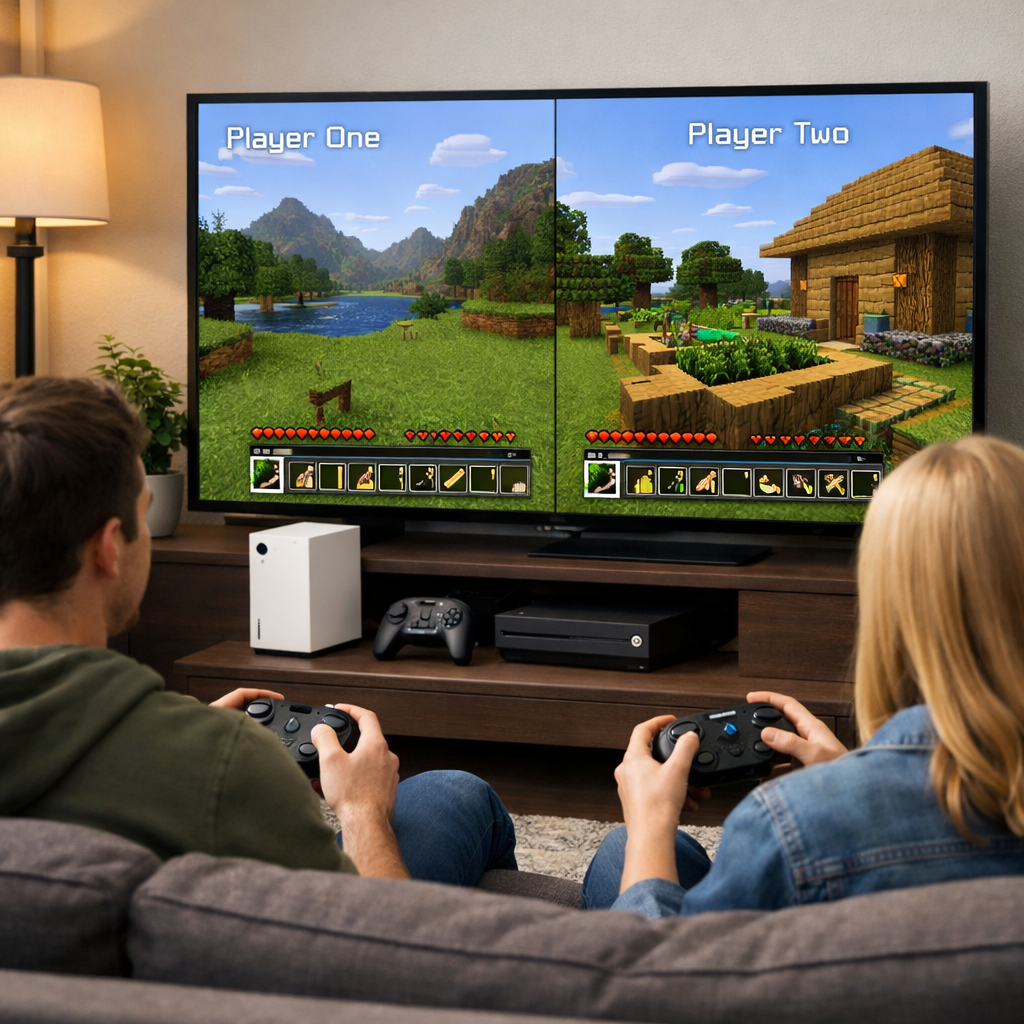
Minecraft Xbox Split-Screen and Local Co-Op: 2026 Guide
Minecraft on Xbox is still great for couch co-op. In 2026, the Bedrock Edition on Xbox Series X|S and Xbox One supports local split-screen for 2–4 players on a single console, letting everyone share one TV while using their own controller. This Gaming Device Advisor guide shows you exactly how to enable split-screen, dial in TV and game settings for a clean layout, and fix common blockers like blank panes or controllers not joining. We’ll also cover when to switch to online or a couch PC setup, and how to avoid pitfalls like TV resolution limits and world save hiccups.
Quick answer
Yes—Minecraft Bedrock Edition on Xbox Series X|S and Xbox One supports 2–4 player local split-screen on one console, with one controller per player, and no online subscription required for local co-op; split-screen remains supported in 2026 per the official setup and requirements guidance and ongoing Bedrock updates (see Minecraft Help Center: Play Bedrock split-screen, Requirements for split-screen, and the Bedrock 26.10 changelog). Parity is effectively the same on Series X|S and Xbox One, and the setup flow matches current Series X|S tutorials showing the join steps.
Minecraft Help Center: Play Bedrock split-screen | Requirements for split-screen | Bedrock 26.10 changelog | Series X|S step-by-step tutorial | UI/readability settings walkthrough
What you need before you start
- An Xbox Series X|S or Xbox One console
- Minecraft Bedrock Edition installed and updated
- 2–4 Xbox controllers (one per player)
- A TV/monitor set to a resolution that meets the split-screen minimum (the Help Center outlines at least 720p for split-screen)
- Players signed in on Xbox profiles or added as Guests
Local split-screen is a multiplayer mode where 2–4 players share one console and one display, with the screen divided into separate panes. Each player uses their own controller. No internet service is required for basic local play, making it ideal for fast, family-friendly couch co-op sessions.
10‑second self-test: set your Xbox video output to meet the Help Center’s minimum resolution, press the Xbox button on each controller to confirm it brings up the guide, and verify Minecraft is up to date (e.g., Bedrock 26.10).
Step 1: Update console, game, and controllers
- Check for Xbox system updates, then update Minecraft Bedrock to the latest version (26.10 as of recent updates). Update controller firmware using the Xbox Accessories app.
- After updates, fully restart the console to clear a suspended state that can interfere with session handling, a known behavior of the Xbox app lifecycle documented in platform client notes.
- If issues persist, power cycle controllers and re-pair over Bluetooth or plug in via USB before proceeding.
Step 2: Confirm TV and video settings for split-screen
- Open Xbox Settings > General > TV & display options, and select a resolution that meets the split-screen minimum. If your TV input doesn’t expose the proper modes, switch HDMI ports/cables and temporarily disable forced HDR or VRR. This aligns with the Help Center’s split-screen requirements and setup guidance.
- Enable your TV’s Game Mode and disable overscan to prevent HUD cropping in any pane.
- Quick display checklist:
- Verify resolution meets/exceeds minimum (typically 720p or higher).
- Disable energy-saving picture modes that dim or blur motion.
- Confirm a 16:9 aspect ratio for clean pane layouts.
Step 3: Launch Bedrock, create or open a world
- Launch Minecraft Bedrock on your primary profile. Create a new world or open an existing one, and ensure Multiplayer is set to On in the world settings. Current how-to videos show this exact flow.
- For a quick test, start in Creative. Switch to Survival after confirming split-screen works.
- If your world uses heavy texture packs, test first with default packs to avoid performance dips during initial setup.
Step 4: Connect extra controllers and sign in local profiles
- Have each additional player power on their controller and press A to join. If prompted, sign in as a Guest or separate local profile; this mirrors the standard Bedrock join flow in the Help Center.
- If a join prompt doesn’t appear, re-sync the controller and ensure it’s paired to the current console (not another Xbox).
- Tip: Keep batteries above 50% or use USB cables during setup to prevent dropouts mid-join.
Step 5: Join the world and configure split-screen layout
- From the pause screen, each player presses A on their controller to join the same local world. You should see additional panes appear, as demonstrated in recent tutorials.
- If text overlaps, immediately adjust HUD/UI settings and verify each player’s inputs are confined to their own pane.
- Pane patterns:
- 2 players: horizontal or vertical split
- 3–4 players: quadrant layout
Optimize performance and readability in split-screen
- Prioritize high-impact toggles: lower UI scale slightly, reduce FOV a bit for less edge distortion, and cut render distance modestly. These changes deliver clear readability gains without heavy trade-offs.
- Save a “Split-Screen” preset so you can toggle back to your solo settings later.
Adjust UI scale, FOV, and render distance
- Reduce UI scale and narrow FOV to around 60–70 to keep text legible and edges stable in divided panes, then trim render distance if frame rate dips with 4 players.
- Quick-start recipe: UI scale −20%, FOV ~60–70, render distance −25% from your solo baseline.
- Note: Heavy packs and high particle density hit performance harder when four views render at once.
Use performance mode and stable network for LAN play
- Use performance-focused console settings and wired Ethernet when hosting local network (LAN) sessions to reduce frame pacing issues and packet loss described in platform lifecycle notes.
- If two consoles are involved, place them on the same switch when possible and restart both after large updates.
Compare Series X|S vs Xbox One experience
- The feature set and steps are the same on Series X|S and Xbox One. Series hardware generally sustains steadier frames at higher render distances; Xbox One users should start conservatively and avoid extra packs with 4-player quadrants.
Troubleshoot common split-screen issues
- Use a restart ladder: Save & Quit world > fully close Minecraft > reboot the console. Community videos show this clears blank panes and stalled joins reliably.
- Re-check OS/game versions and controller firmware; confirm sign-in state, and avoid resuming from a long suspend due to Xbox lifecycle constraints.
Player cannot join or blank pane appears
- Re-sign the affected profile, then press A again from the pause menu. If the pane stays blank, disconnect/reconnect the controller and retry. This mirrors official play/setup instructions and video walkthroughs.
- If it still fails, fully close Minecraft, power cycle the console, and test in a brand-new world without texture packs.
Controllers not detected or inputs cross over
- Remove and re-pair controllers so each maps to a distinct local profile or Guest, and power down any extra controllers to avoid cross-mapping.
- If drift or ghost inputs appear, connect via USB temporarily and update controller firmware.
Account and permissions conflicts
- Ensure each profile is allowed to join local multiplayer and that parental controls aren’t blocking local co-op. If needed, sign out all users, sign in the primary first, then add Guests.
- If the session glitches after suspend/resume, relaunch Minecraft to reset session state, per Xbox lifecycle behavior.
Display not meeting resolution requirements
- In Xbox video settings, set the TV to at least the minimum resolution required for split-screen. If the port/cable can’t deliver it, try a different HDMI port/cable and disable overscan in the TV menu.
- Reopen the world after changing resolution so the layout refreshes.
Local co-op vs online with split-screen
Local co-op lets multiple players share one console and screen, dividing the display into panes. It’s offline by default and doesn’t require online services for basic play. Families and roommates can jump in instantly with minimal setup and zero subscription overhead.
Realms and online multiplayer are separate from local split-screen. Use Realms when you need persistent worlds or to play with remote friends; popular tutorials walk through hosting and joining flows for these scenarios.
| Mode | Requirements | Persistence | Latency | Ideal use cases |
|---|---|---|---|---|
| Local split-screen | 1 console, 1 TV, 2–4 controllers | Saves on host console/Realm | None (offline) | Families, parties, quick couch sessions |
| Online/Realms | Internet, accounts, subscriptions as needed | Realm/server saves persist | Internet-dependent | Remote friends, always-on shared worlds |
How split-screen works with Realms and friends
- You can use local split-screen while the host connects to a Realm or friends list; overall smoothness depends on network quality, so wired networking is best practice as community tutorials emphasize.
- On Xbox, account sign-ins and session state matter; resuming from suspend can disrupt connectivity or joining until you relaunch due to lifecycle constraints.
When to use online instead of local play
- Choose Realms or online sessions when players are remote or you want a persistent world that’s available even when the host console is off.
- Stick with local split-screen for 2–4 players on one TV to minimize setup and cost; move online for larger groups or complex add-ons.
Safety and setup tips from Gaming Device Advisor
- Save/backup discipline prevents heartbreak; child privacy settings reduce risk; and controller power planning avoids mid-session interruptions.
Prevent save corruption and data loss
- Exit to the main menu before powering down, avoid letting the console sleep during a save, and keep periodic cloud backups or Realm copies for important worlds.
- If the game hangs after a suspend, relaunch to avoid partial writes aligned with Xbox lifecycle handling.
Manage kids profiles and privacy settings
- Use child accounts with tailored privacy and communication limits; keep multiplayer local-only for young players unless supervised.
- Pre-approve purchases and content packs—heavy packs can hurt performance in 4-pane layouts.
Keep controllers powered and firmware current
- Start sessions with fresh batteries or recharge; use USB cables for marathon play. Update controller firmware via Xbox Accessories after system updates.
- Only power the controllers you need to prevent accidental joins.
Editor-tested gaming desktops and living room setups
If visuals, mods, or higher frame targets matter, a couch gaming PC can outpace consoles—without sacrificing living-room comfort. At Gaming Device Advisor, we rate desktops on noise, thermals, stability, and 10‑foot usability to ensure they disappear into the background while you play.
When a gaming PC beats console split-screen
- PCs shine with ultrawide or 120Hz+ displays, heavily modded Minecraft, or when more than four players join via LAN. Discrete GPUs also scale render distance and effects more flexibly than consoles.
- Consider a small-form-factor PC under the TV with verified cool-and-quiet behavior and minimal coil whine.
Recommended couch-friendly PC peripherals
- Pick low-latency wireless controllers, lapboard keyboards, and precise couch-optimized mice/trackpads. USB dongles are typically more reliable than Bluetooth in busy RF environments.
- Add a compact USB hub by the couch and long USB‑C cables to charge controllers and headsets during play.
RGB and ARGB lighting guidance for living room rigs
Subtle, safe lighting blends better with shared spaces. Keep effects simple, quiet, and consistent—and wire them correctly to avoid damage.
5V ARGB vs 12V RGB compatibility basics
5V ARGB (3‑pin) provides individually addressable LEDs and requires 5V headers or a controller. 12V RGB (4‑pin) powers all LEDs as one channel and uses 12V headers. Never connect 3‑pin ARGB to 12V RGB headers—the voltage mismatch can permanently damage devices. Verify motherboard headers before buying strips or fans.
Safe hub and controller recommendations
- Use dedicated 5V ARGB hubs/controllers powered by SATA/USB if your motherboard lacks the right headers; this offloads power from the board and simplifies cabling.
- Favor software-agnostic controllers to minimize conflicts across mixed-brand lighting gear.
Cross-ecosystem sync considerations
- Choose one primary RGB software ecosystem and limit background lighting apps to avoid flicker, bloat, and frame pacing issues.
- Simple sync plan: one hub, one app, standardized effects—avoid mixing 12V and 5V chains.
Frequently asked questions
Does Minecraft on Xbox support split-screen or local multiplayer?
Yes. Minecraft Bedrock Edition on Xbox Series X|S and Xbox One supports local split-screen for 2–4 players on a single console with one controller per player. No online subscription is required, and our setup steps above walk you through it.
How many players can use split-screen on Xbox?
Up to four players can share the screen locally on one Xbox, with the display dividing into panes. Each player needs their own controller.
Do I need Xbox Live Gold or Game Pass for local split-screen?
No. Local split-screen on a single console does not require Xbox Live Gold or Game Pass. Subscriptions are only needed for online features or Game Pass library access.
Why is split-screen not appearing on my TV?
Most often the TV resolution doesn’t meet the split-screen requirement. Set your Xbox to a supported resolution for split-screen, then relaunch the world. Also confirm each controller is signed in and press A to join.
Can I mix split-screen with online friends in the same session?
Yes. Players on the couch can use split-screen while the host connects to friends or a Realm online, though performance depends on your network quality. Gaming Device Advisor recommends a wired connection for smoother play.