Overclocking on a Budget: Best Value Gaming PC Brands
Overclocking on a Budget: Best Value Gaming PC Brands
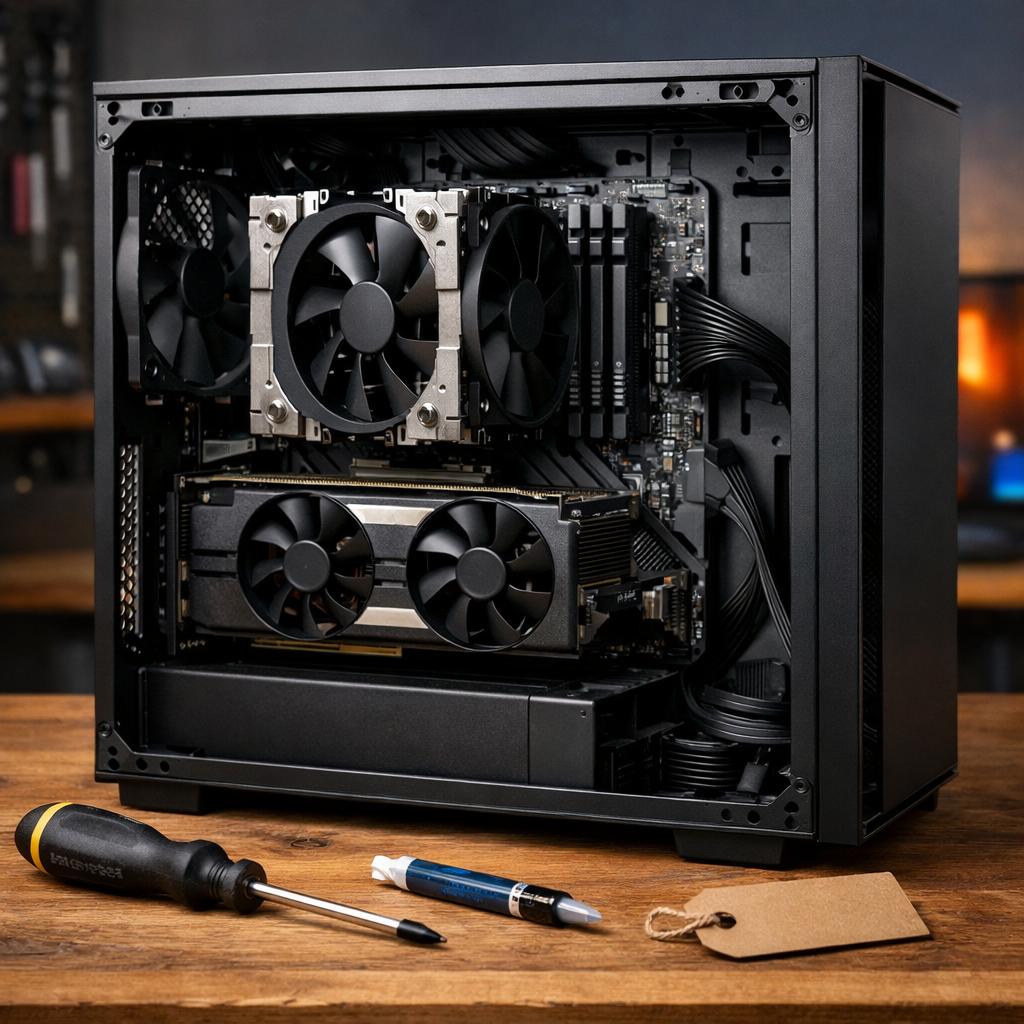
If you want extra frames without overspending, the sweet spot is mild, safe overclocking on value-focused prebuilts that use standard components and decent cooling. Below, we compare brands that deliver the best value for overclocking at 1080p–1440p, emphasizing upgrade-ready parts, thermal headroom, and clear warranty terms. Our picks lean on midrange GPUs for the best price-to-performance and favor systems that are easy to tune and easier to upgrade later. We also cover when to buy, what bundles matter, and a practical 30‑day plan to stabilize your rig and keep total costs in check.
Gaming Device Advisor
Our buyer-first lens prioritizes parts you can swap and coolers you can rely on—because standard components, cooling headroom, and transparent warranties beat flashy specs when you’re tuning on a budget. We aim for strong 1080p–1440p results with midrange GPUs and quiet, stable thermals. Use Gaming Device Advisor’s checklists and step‑by‑step plan in this guide to make choices quickly and tune with confidence.
Overclocking is the practice of running a CPU or GPU above its rated speed to gain performance. Mild overclocks target small, stable gains while keeping temperatures and noise in check, typically by adjusting power and frequency within safe margins and verifying stability under gaming and stress tests.
We also flag the best times to buy (seasonal promos and bundle cycles) and the post‑purchase must‑haves (cooler, fans, storage) so you avoid surprise spend.
HP Omen
HP Omen stands out for midrange value and approachable tuning. The Omen 35L delivers strong 1440p frame rates in a tasteful mid‑tower, with notably quiet acoustics [1]. HP’s consistent use of industry‑standard parts makes upgrades and repairs easier over time [2]. Expect mainstream Omen builds (for example, Ryzen 5 8400F paired with an RTX 5060) to retail around $1,049.99–$1,299.99, depending on promos and memory/storage choices [3], and Forbes notes competitive midrange configs in its current roundups [4]. For mild overclocks, confirm cooler size support and ensure front‑to‑top airflow is unobstructed.
Lenovo Legion
Lenovo’s Legion towers are well‑built and easy to open, with quiet operation that suits incremental tuning at 1440p. Step‑up shoppers should note that higher‑tier models like the Legion Tower 7i Gen 8 can reach 4K‑capable performance; as tested configurations have landed around the low‑$2,000s, offering a viable path if you want headroom to grow [2]. Before committing, verify whether the exact model uses standard motherboards/PSUs and supports a 240–360mm AIO if you plan to nudge CPU clocks.
iBUYPOWER
iBUYPOWER is a cost‑conscious sandbox for budget overclocking, with frequent bundle deals and a broad range of parts. Forbes highlights iBUYPOWER Slate variants with high‑end component options—think Core Ultra 9 285K and RTX 5070—showing the brand scales from entry to enthusiast without losing configurability ([Forbes best gaming PCs])[4]. For value‑grade tuning, check case airflow (front intake, top/rear exhaust), CPU cooler clearance, motherboard VRM quality, PSU brand and wattage, and warranty terms.
CyberPowerPC
CyberPowerPC’s breadth makes it easy to spec an OC‑friendly build under tight budgets. Tom’s Hardware includes the Gamer Xtreme line among top budget picks for mainstream players ([Tom’s Hardware best gaming PCs])[5]. Aim for sub‑$1,000–$1,500 midrange GPUs with standard ATX PSUs for future upgrades, and cross‑check CPU/GPU tiers using retailer filters and price bands ([Best Buy gaming desktops])[3]. Quick checklist:
- Airflow: mesh front intake, clear top/rear exhaust
- Cooler: tower air or 240mm AIO
- PSU: at least 650W (80 Plus Bronze/Gold)
- BIOS access: fan curves, XMP/EXPO, basic voltage/frequency controls
ASUS ROG
ASUS ROG desktops and compact units favor performance, but form factor matters for upgrade headroom. Compact options like the ROG NUC 970 pack potent specs and upgradeable M.2 slots, yet command a steep premium and tighter thermals ([Tom’s Guide best gaming PC])[6]. Some small or proprietary designs across the category can limit future upgrades [1]. If you plan sustained overclocks, balance size against thermal capacity and ensure the chassis supports adequate intake and a 240mm AIO or high‑end air cooler.
Skytech
Skytech’s entry‑to‑midrange prebuilts are cleanly assembled and approachable for mild tuning. PC Gamer calls out the Chronos 2 as a well‑presented RTX 4070 entry option—solid build quality even if it’s not the absolute cheapest ([PC Gamer best gaming PC])[7]. For quiet gains, confirm motherboard VRM quality and cooler support, then start with GPU curve tuning and modest CPU power limits to trim noise while holding frame rates.
Velocity Micro
Velocity Micro operates at a boutique‑leaning value tier with strong service and speed. PCMag awarded the Raptor Z55a Editors’ Choice and an “Outstanding” rating for ferocious performance at competitive pricing, noting trade‑offs like no Wi‑Fi 7 and a no‑window case on the tested unit ([PCMag best gaming desktops])[1]. Use the configurator to choose standard motherboards, high‑quality PSUs, and robust coolers—key to reliable overclocking margin without overspending.
NZXT
NZXT prebuilts emphasize clean cable management, standard ATX parts, and straightforward airflow layouts. That makes them easy to tune quietly and upgrade over time—slotting in larger AIOs, faster RAM, or a new GPU is typically painless. Before buying, confirm AIO size support (240–360mm) and fan placements to keep 1080p–1440p acoustics controlled.
Alienware
Alienware blends top‑tier performance and distinctive design with advanced cooling—but at premium prices. Tom’s Guide names the Aurora R16 a best overall pick for power and relative upgradeability, and reports Geekbench multi‑core results outpacing an HP Omen sample (22,494 vs. 13,559) ([Tom’s Guide best gaming PC])[6]. TechRadar and others also flag proprietary motherboard considerations that may constrain future swaps ([TechRadar best gaming PC])[8]. Ceiling specs can be extreme (Intel Core Ultra 9 with RTX 5090 and liquid cooling in some builds [4]), and RTX 5080 models often list around $3,149.99 depending on configuration and retailer cycles [3]. For budget overclocking, weigh these trade‑offs carefully.
Corsair
Corsair systems are premium and thermally robust, ideal when compact quality and support justify cost. Tom’s Hardware crowned the Vengeance i7600 “best overall” in one roundup, citing features like Thunderbolt 4, Wi‑Fi 7, and a two‑year warranty ([Tom’s Hardware best gaming PCs])[5]. Cooling quality and tidy layouts favor stable overclocks, but pricing typically runs higher than value brands—best for small‑form‑factor shoppers who prize acoustics and warranty support.
How to choose a value brand for overclocking
Use this simple Gaming Device Advisor framework:
- Standard components: off‑the‑shelf motherboard, ATX PSU, non‑proprietary case.
- Cooling capacity: at least two intake and one exhaust fan; support for 240mm AIO or top‑tier air.
- Balanced CPU/GPU: 6–8 core modern CPU with midrange GPU for 1080p–1440p efficiency.
Quick comparison of brand strengths:
| Brand | Upgradeability | Cooling headroom | Typical price bands | Warranty highlights |
|---|---|---|---|---|
| HP Omen | Strong (standard parts) | Quiet mid‑tower options | $1,000–$1,500 midrange | Mainstream OEM coverage |
| Lenovo Legion | Good (check model) | Quiet, efficient towers | $1,200–$2,200+ | OEM warranty; verify terms |
| iBUYPOWER | Very good (varied) | Depends on case/cooler | $900–$2,000+ | SI warranties; bundle promos |
| CyberPowerPC | Very good (broad) | Configurable | $800–$1,600+ | SI coverage; many configs |
| ASUS ROG | Mixed (compact limits) | Strong but size‑bound | $1,500–$3,000+ | Premium support tiers |
| Skytech | Good | Clean layouts | $1,100–$1,800+ | SI warranty |
| Velocity Micro | Excellent (boutique) | Robust cooler options | $1,500–$3,000+ | Strong service reputation |
| NZXT | Strong | Straightforward airflow | $1,100–$2,000+ | SI coverage; easy service |
| Alienware | Mixed (proprietary) | Advanced cooling | $1,800–$3,500+ | Premium OEM support |
| Corsair | Strong (premium) | High‑quality in compact | $1,700–$3,000+ | Two‑year on many models [5] |
Budget tiers for expectation setting: entry ($800–$1,200), mid ($1,200–$2,000), high (>$2,000), aligning with broad market pricing bands and value inflection points ([Accio price guide])[9].
Standard components and upgrade paths
Standard components means the PC uses off‑the‑shelf motherboards, ATX PSUs, and common cases. This allows swapping coolers, RAM, storage, and GPUs without proprietary restrictions, lowering upgrade costs and extending system lifespan—ideal for iterative, budget‑friendly overclocking. HP Omen’s use of industry‑standard parts is a good example [2], while some brands employ proprietary boards that can limit future upgrades [8]. Verify chipset/VRM quality, PSU wattage/efficiency, and case clearance for a 240–360mm AIO or tall air cooler.
Cooling and acoustics
Thermal headroom is the temperature margin between your component’s current operating temps and its safe limits. More headroom allows modest frequency increases without throttling, fan noise spikes, or long‑term wear—critical for stable, budget overclocking. Favor cases with front intake plus top/rear exhaust and a capable AIO or tower air cooler; the Omen 35L’s quiet character sets a useful acoustic target [1]. Simple airflow check: at least two intake and one exhaust fan, unblocked GPU intake, and a PSU pulling cool air (not from a hot compartment).
CPU and GPU balance for 1080p to 1440p
Midrange GPUs like RTX 5060–5070 tiers typically deliver excellent bang‑for‑buck at 1080p–1440p; confirm availability and pricing via retailer filters ([Best Buy gaming desktops])[3]. Pair a modern 6–8 core CPU with 32GB DDR5 for headroom, and prioritize fast NVMe storage for shader compilations. Balanced, upgradeable picks we favor: HP Omen and Lenovo Legion towers, plus iBUYPOWER and CyberPowerPC configs with standard boards and cooler support.
Warranty and support basics
Warranty coverage outlines what the manufacturer will repair or replace and under which conditions. Overclocking may be excluded if it causes damage, so confirm whether software‑level tuning is permitted and whether parts (PSU, cooler) retain separate component warranties. Mainstream OEMs and system integrators often rival boutique coverage at lower cost; check term length, RMA process, and phone/chat support. Keep profiles mild—undervolts plus small clock boosts—to reduce risk.
When to buy for the best value
Time purchases around major sales—back‑to‑school, Black Friday/Cyber Monday—and track retailer budget bands to set alerts ([Micro Center gaming desktops])[10]. Compare GPU tier pricing across listings and consider waiting when new launches push midrange prices down ([Best Buy gaming desktops])[3]. If a promo adds a better cooler or PSU within the same price band, it often beats a slightly faster CPU/GPU with weak thermals. Also compare against console bundle deals to gauge total value per dollar.
Seasonal promos and bundle timing
Micro Center’s common budget bands ($750–$1,250; $1,250–$2,000; $2,000+) help anchor targets ([Micro Center gaming desktops])[10]. Watch for value add‑ins (games, quality peripherals, extended warranties) and step up within a band when cooling or PSU upgrades are included. If the total package is marginal, consider waiting one promo cycle—especially if it nets a stronger cooler or longer warranty at the same price.
What to look for in free trials and add-ons
Prioritize bundles that add memory or storage, a solid keyboard/mouse, or extended warranties over novelty extras. Subscription trials can offset library costs early; compare by trial length, catalog fit, and renewal price. Cross‑check included Wi‑Fi 7 or Thunderbolt 4 in premium builds (as seen on Corsair Vengeance) for future‑proof I/O and faster networking ([Tom’s Hardware best gaming PCs])[5].
Post-purchase plan for budget overclockers
30‑day plan (Gaming Device Advisor baseline):
- Days 1–3: Update BIOS/drivers, baseline temps/noise, run a few game and stress tests.
- Days 4–10: Set fan curves, enable XMP/EXPO, apply mild GPU curve and CPU power/turbo limits; validate stability.
- Days 11–20: Install additional fans or a better cooler if temps/noise exceed targets; retest.
- Days 21–30: Audit storage and RAM usage; add NVMe or move to 32GB if needed. Set reminders for subscription trials.
Upgrade priorities vs. cost/impact:
| Upgrade | Est. cost | Impact on OC stability/noise | Notes |
|---|---|---|---|
| 2×120mm intake fans | Low | Medium | Improves GPU temps and case pressure |
| 240mm AIO or tower air | Mid | High | Stabilizes CPU under sustained loads |
| 32GB DDR5 | Mid | Medium | Smoother frametimes, multitasking |
| 1–2TB NVMe SSD | Mid | Low–Medium | Faster loads; space for big titles |
| 750–850W ATX PSU | Mid | Medium | Headroom for future GPU and tuning |
Essential accessories and cooling upgrades
Focus on low‑cost thermal wins: add front intake fans, refresh thermal paste, consider a 240mm AIO or high‑end air cooler, and use a fan hub for clean control. Aim for quiet operation similar to Omen 35L’s tone [1]. Install flow:
- Mount cooler and fans (front intake, top/rear exhaust).
- Set PWM fan curves tied to CPU/GPU temps.
- Re‑test with a 30‑minute stress and a couple of your heaviest games.
Storage, RAM, and PSU headroom
Move to 32GB DDR5 and add a second NVMe for modern titles; verify open M.2 slots (compact systems like ROG NUC 970 still offer M.2 expansion) [6]. Target 20%–30% PSU headroom above peak load and ensure it’s an ATX unit for easy replacement. After cloning or adding drives, run SMART checks and update firmware as needed.
Managing subscriptions and game libraries
Compare subscription tiers by catalog fit, recurring price, and cloud‑save support; use free trials and intro rates first. Set calendar reminders for renewals, rotate services quarterly, and redeem bundled months from new hardware. Track your library in a simple spreadsheet to avoid duplicate buys.
Frequently asked questions
Is it safe to overclock a budget prebuilt PC?
Yes—keep it mild, monitor temperatures, and use adequate cooling. Gaming Device Advisor recommends standard components and clear warranty terms so upgrades stay easy.
What components impact overclocking the most?
CPU cooler quality, motherboard VRM design, and case airflow matter most, followed by PSU headroom and GPU cooling. Gaming Device Advisor prioritizes these over small MHz gains.
How much cooling do I need for mild overclocks?
For midrange CPUs/GPUs, a quality tower air cooler or a 240mm AIO with two intake and one exhaust fan is usually sufficient, assuming clean airflow and sensible fan curves. As a baseline, Gaming Device Advisor targets this setup for mild overclocks.
Will overclocking void my warranty?
It depends on the vendor. Gaming Device Advisor suggests reading the terms and keeping profiles conservative since many warranties don’t cover damage caused by overclocking.
Should I buy now or wait for the next GPU tier?
If you find a midrange build with good cooling and a fair price, buy during a promo; otherwise wait for next‑tier launches that usually push current prices down. Gaming Device Advisor favors configs with stronger coolers over small CPU/GPU bumps at the same price.