Top Integration Benefits Between New Xbox Handheld and Xbox Cloud Gaming
Top Integration Benefits Between New Xbox Handheld and Xbox Cloud Gaming
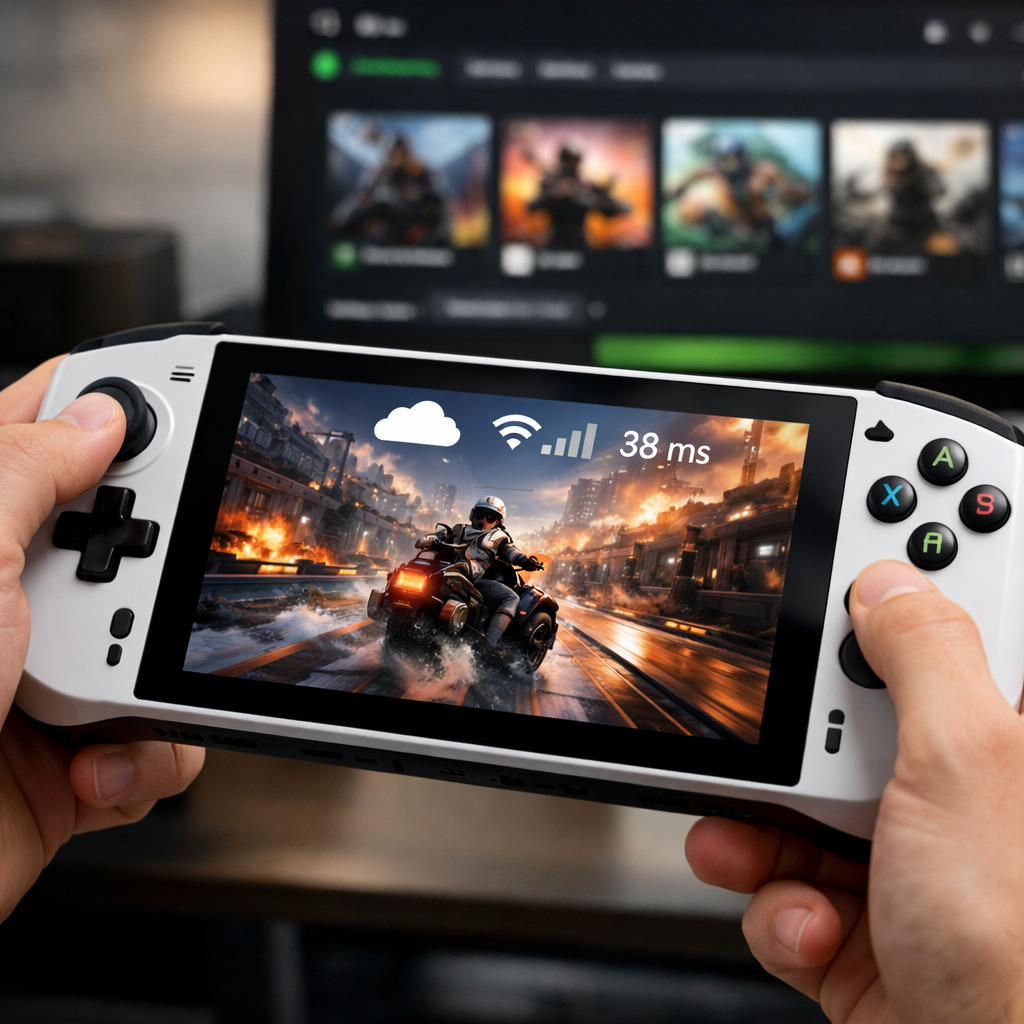
The new wave of Xbox-focused handhelds is built to click seamlessly with Xbox Cloud Gaming, turning wait times into playtime, stretching battery life, and giving you a stable performance fallback for demanding games. In practice, that means you can stream Game Pass titles instantly, install locally when you need max fidelity, and carry your saves and add‑ons across devices without thinking about it. This guide explains how the integration works day to day—where streaming wins, when local play is smarter, and the real trade-offs you should expect—so you can get more gaming from the same hardware and subscription.
Gaming Device Advisor
At Gaming Device Advisor, we translate platform features into measurable outcomes: frame rate, latency, thermals, battery, and total cost. This guide is for console gamers curious about handhelds, parents buying for teens, and on‑the‑go players who want a simple, testable plan to mix cloud and local modes. We also focus on practical settings and network checklists you can apply right away.
“Stream when you need instant access or battery savings; install locally when you need max fidelity—provided your internet and subscription fit your play.”
Instant Game Pass access and synced progress
Xbox Cloud Gaming is a cloud-streaming feature included with Game Pass Ultimate that lets you play supported Xbox titles over the internet on phones, PCs, consoles, and handhelds without installing them. Your saves, add‑ons, and achievements live with your Xbox account, so you can switch devices and continue instantly. You can launch on supported handhelds through the Xbox app or the web at xbox.com/play, and your progress syncs automatically—start on console, continue a run on your handheld at lunch, then pick it up on your PC that night, all without manual steps (see Microsoft’s overview in Xbox on handhelds). Xbox on handhelds For everyday use, that continuity reduces friction when switching between cloud and local play.
Microsoft has also raised console cloud streaming quality up to 1440p, which better matches common handheld displays and sharpens the fallback stream when you don’t want to install. These handheld-focused updates are rolling out alongside broader usability work. New handheld-focused Xbox features
Storage savings and simplified setup
Streaming meaningfully reduces storage pressure on handhelds with 512GB–1TB SSDs. Instead of downloading 80–120GB blockbusters, you can try them instantly and reserve storage for your always‑on favorites. Many devices also support microSD expansion; Microsoft’s updates let certain handhelds format SD cards directly from the Xbox app during install to keep setup simple. The evolving Xbox Fullscreen Experience on Windows handhelds further smooths navigation and game launching. New handheld-focused Xbox features
ROG Ally and Ally X benefit from shader pre-compilation to cut first‑run hitching. Shaders are small programs the GPU uses to render graphics. In many PC games, they compile when you first play, causing momentary stutter. Pre‑compilation builds them ahead of time, reducing those hitches and making first launches feel smoother. New handheld-focused Xbox features
Quick setup plan:
- Want to try a game now or you’re short on space? Choose Cloud Play in the Xbox app to start instantly.
- Plan to play offline, competitive modes, or marathon sessions? Install locally.
- Expanding storage? Use the Xbox app’s SD‑card formatting during install (where supported) and keep your SSD for the games you touch daily.
Battery life gains when streaming
Cloud gaming offloads rendering to the data center, so your handheld’s APU runs cooler and sips power. In reviewer tests on an Ally, streamed sessions used roughly 10–15% battery in around 20 minutes for Forza Horizon 5 and The Division, and about 10–12% in ~25 minutes for Hollow Knight: Silksong; a lighter indie (Ball X Pit) used ~12% in over an hour. These numbers show meaningful savings versus typical local play, especially for AAA titles. ROG Ally review measurements
Comparison: local install vs cloud stream (estimates per 30 minutes)
- Assumes handheld brightness ~50–60%, standard 15–25W local TDP, strong Wi‑Fi 6/6E.
| Game type | Local install: battery per 30 min | Local: heat/fan | Cloud stream: battery per 30 min | Cloud: heat/fan |
|---|---|---|---|---|
| AAA (e.g., Forza, The Division) | ~25–35% | Warm; audible fans under load | ~15–22% (scaled from 10–15%/20 min) | Cooler; fans modest |
| Indie/AA (e.g., Silksong, platformers) | ~12–18% | Mild warmth; light fan | ~6–14% (scaled from 10–12%/25–30 min; ~6%/30 for very light) | Cool; quiet |
When to favor cloud for battery:
- Traveling, lunch breaks, or couch play without a charger.
- Long RPG grinds or chill sessions where absolute max fidelity isn’t required.
- Note: Wi‑Fi strength is critical—weak links trigger rebuffering that can erode savings.
Performance consistency across demanding titles
Local installs win for maximum fidelity, ultra‑low latency, and offline play. In hands‑on testing, the ROG Ally X maintained 60 fps at 1080p in Gears of War: Reloaded using FSR 3.1—evidence that modern Xbox handhelds can deliver strong native 1080p when tuned well. The Ally X itself pairs a Ryzen AI Z2 Extreme APU with 24GB LPDDR5X‑8000, a 1TB SSD, a 7‑inch 1080p 120Hz panel, and Wi‑Fi 6E—good headroom for local installs. Hands-on with the Ally X
Cloud streaming provides a quality safety net when a specific AAA pushes your hardware too hard, serving up consistent high settings even on modest power profiles. And with console cloud streaming up to 1440p, visuals look clean on 7–8” screens. New handheld-focused Xbox features For battery-limited sessions, Gaming Device Advisor suggests streaming first, then installing locally if you commit.
Simple decision flow:
- If your target is 60 fps competitive or offline play and you can install → go native.
- If you want quick access, battery savings, or you’re tackling a graphically heavy game on the go → stream first.
Lower perceived input lag for most genres
Reviewer sentiment is clear: “Xbox Cloud gaming is the best it’s ever been,” with near‑imperceptible lag in many cases—great for RPGs, racers with assists, platformers, and story adventures. For ranked shooters, fighters, and rhythm games, the most timing‑sensitive players should prefer local installs. ROG Ally review measurements Rule of thumb from Gaming Device Advisor: install for ranked or timing‑critical play; stream for relaxed sessions.
Input latency is the delay between your button press and the on‑screen result. It’s affected by controller polling, device processing, display response, and—when streaming—the network’s round‑trip time. Lower latency feels more responsive and is essential for competitive play, whereas relaxed genres tolerate a bit more delay.
Latency tips:
- Use 5GHz or 6GHz Wi‑Fi (Wi‑Fi 6/6E), stay close to the router, and avoid mesh nodes with weak backhaul.
- Pause background downloads/streams on your network.
- If docked, try wired Ethernet for the lowest jitter.
Handheld compatibility and developer support
Microsoft now signals expected handheld performance with Windows Performance Fit and Handheld Compatibility badges: Handheld Optimized, Mostly Compatible, Unsupported, and Not Tested. Many tiles also carry “Play well” (~30 fps) and “Play great” (~60 fps) expectations, plus notes if settings tweaks are needed—helpful cues before you decide to install or stream. Handheld compatibility badges Gaming Device Advisor uses these badges as a quick pre‑check to set expectations before you install or stream.
On the supply side, Microsoft’s handheld development resources guide studios on input, UI, and performance optimization, which should improve first‑run settings and stability over time. Handheld development resources Consider the Ally X’s hardware baseline noted earlier as a proxy for expected tiers: games tagged “Play great” should generally be comfortable at 60 fps native; “Play well” games are solid stream-first candidates on battery.
Seamless cross-device continuity
Because saves, add‑ons, and achievements sync at the account level, you can bounce between console, handheld, and PC without friction. Launch cloud play from your console, the Xbox app, or via xbox.com/play, and install locally whenever you need offline or peak fidelity (as documented in Microsoft’s Xbox on handhelds guidance). Xbox on handhelds
Practical scenarios:
- Commute stream → evening install: Sample a new Game Pass title on your handheld during the commute, then install on your living‑room Xbox for a 4K session—your save continues.
- Try before install: Stream to test performance and vibes; if it’s a weekend staple, install locally to lock in offline play.
Compatible handhelds include ROG Ally and Ally X, MSI Claw 8 AI+, and Lenovo Legion Go S, alongside other Windows‑based portables that support the Xbox app.
Smart use cases by game type and network quality
By genre:
- Stream-first: turn‑based RPGs, indie platformers, story adventures, racers with assists, management sims.
- Install-first: competitive shooters, fighting games, rhythm titles, sim racers with wheel or high‑end assists off.
By connection:
- Strong Wi‑Fi 6E or wired dock: Stream AAA or co‑op comfortably; consider native installs for esports tiers.
- Moderate Wi‑Fi: Stream indies/AA; install the most demanding games.
- Weak/limited or metered: Install and use offline modes; use Remote Play only on strong local networks.
Compact guide
| Genre | Recommended mode | Latency sensitivity | Battery impact |
|---|---|---|---|
| Turn‑based RPGs, story adventures | Cloud or Local | Low | Cloud saves most battery |
| Indie platformers, metroidvanias | Cloud (trial) → Local if you commit | Medium | Cloud modest savings |
| Racers with assists | Cloud or Local | Medium | Cloud good on short sessions |
| Competitive shooters/fighters/rhythm | Local | High | Local drains more battery |
| Big open‑world AAA | Cloud for quick sessions; Local for long marathons | Medium | Cloud reduces heat/noise |
Limitations and trade-offs to consider
- Xbox Cloud Gaming requires Game Pass Ultimate and a supported device; regional libraries and availability vary, and some cloud‑playable games are sold separately. Xbox on handhelds
- Network quality is the gating factor. While console cloud streaming can reach up to 1440p, congested Wi‑Fi or high latency can cause buffering or quality drops. New handheld-focused Xbox features
- Cost calculus: cloud is ideal for discovery and flexibility; installs make sense for long‑term staples you’ll replay, mod, or keep offline.
Frequently asked questions
Do I need Game Pass Ultimate to use Xbox Cloud Gaming on the handheld?
Yes. Xbox Cloud Gaming requires an active Game Pass Ultimate subscription and a supported device or browser; Gaming Device Advisor recommends installing owned games locally when you need offline play.
How much battery can streaming actually save compared with local play?
Based on published tests, cloud sessions can use roughly 10–15% battery in about 20 minutes for some AAA titles, and around 10–12% in ~25 minutes for certain indies. Gaming Device Advisor uses these figures as ballpark guidance; results vary by brightness, Wi‑Fi, and game.
Is cloud latency good enough for competitive shooters?
Often, yes for casual play, but ranked shooters and fighters are more sensitive. Gaming Device Advisor advises installing locally for competitive tiers and streaming campaigns on strong Wi‑Fi.
What internet speed and Wi‑Fi setup do I need for stable handheld streaming?
Use a fast, low‑latency connection with 5GHz/6GHz Wi‑Fi or a wired dock when possible, and sit close to the router. Gaming Device Advisor also suggests avoiding congested networks and pausing background downloads.
When should I install locally instead of streaming?
Install locally for competitive, timing‑critical games, offline trips, or when you want maximum fidelity and steadier frame rates. Gaming Device Advisor recommends streaming to test new titles instantly, save storage, or extend battery on the go.