Xbox accessibility: built-in features vs external adaptive accessories
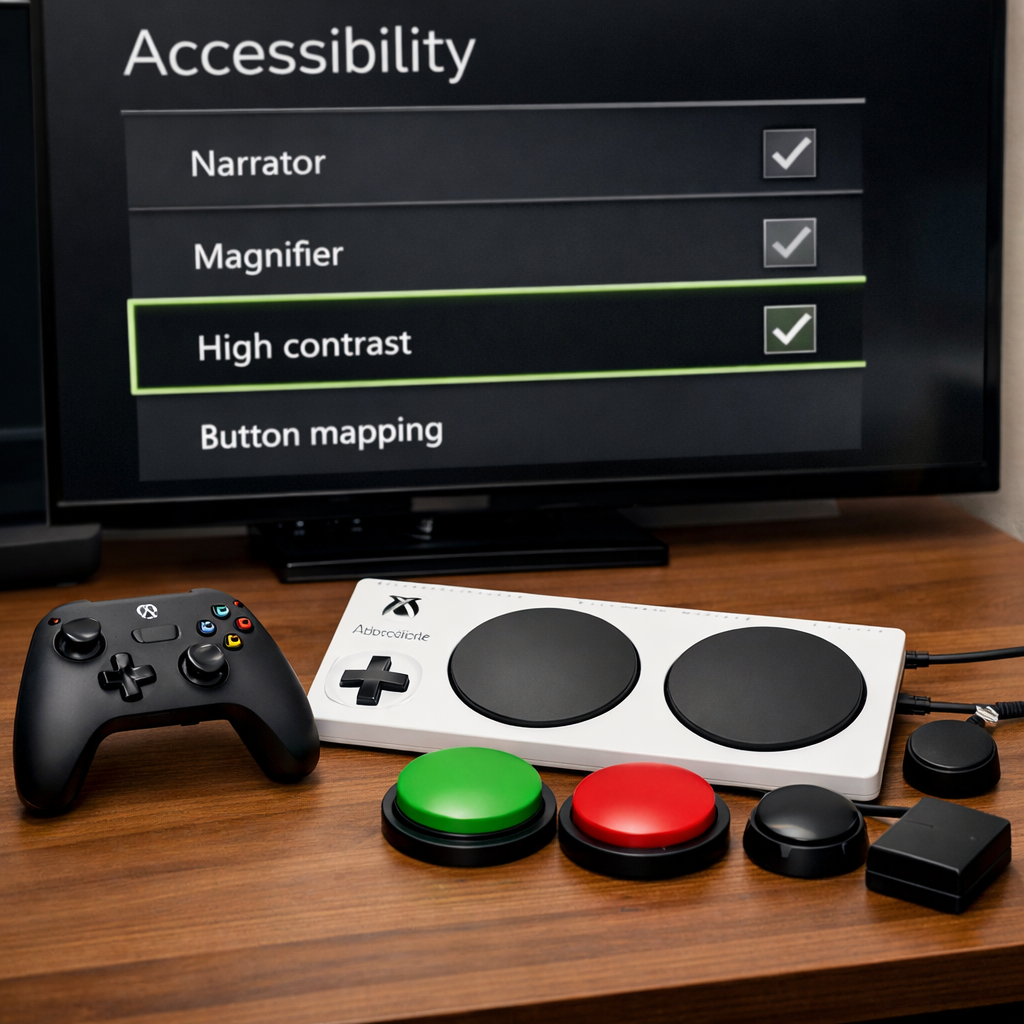
Xbox accessibility: built-in features vs external adaptive accessories
Xbox now ships with meaningful accessibility options and a maturing adaptive hardware ecosystem. The fastest path is often turning on built-in settings for vision, hearing, and cognitive support; when physical input becomes the barrier, external adaptive accessories unlock custom controls and comfort. This Gaming Device Advisor guide compares both approaches—how they work, what they cost, how to set them up safely—and helps you decide which to use first, when to layer hardware, and how to future‑proof your configuration.
Assistive technology: Tools, devices, and software that help people with disabilities perform tasks more independently. Examples include screen readers, adaptive controllers, switches, eye-tracking, and mounting systems. Global demand is large—over 2.5 billion people need one or more assistive products, rising to 3.5 billion by 2050 according to the WHO assistive technology fact sheet.
Who this comparison is for
This comparison is for Xbox Series X|S and Xbox on Windows players weighing built-in accessibility features against external, adaptive hardware. It’s designed for enthusiasts, new users, caregivers, and clinicians who want practical, safe, and cost-aware guidance.
We focus on two domains: sensory/cognitive adjustments handled through software (narration, zoom, captions, UI aids), and motor accessibility served by modular hardware (hubs, buttons, switches, joysticks, mounts). Expect candid trade-offs, cross-device considerations, and budget-conscious recommendations.
How we evaluate accessibility on Xbox
- Functionality coverage: Which needs are addressed (vision, hearing, cognitive, motor) and how completely. This maps to whether you can play without extra gear or need specialized input devices.
- Setup complexity: Time and steps to configure, from simple toggles to physical mounting and profile tuning.
- Compatibility and ecosystem fit: Switch standards (3.5mm), USB/Bluetooth support, and whether Windows tools are required for configuration. This prevents returns and stalled setups.
- Flexibility and future-proofing: Modularity, profile management, and room to grow as abilities, games, or environments change.
- Reliability and support: Firmware/OS updates, warranties, community resources, and clear documentation.
- Total cost of ownership: Upfront price plus add-ons (mounts, switches), replacement parts, and time investment.
Quick-check criteria we use at Gaming Device Advisor:
- Inputs supported (ports, switches, axes)
- Remapping depth and per-game profiles
- Profile export/backup options
- Physical adjustability and mounting points
- Documented standards and return policies
Built-in Xbox accessibility features
Out of the box, Xbox includes robust software support across:
- Vision: Narrator (a screen reader), magnifier/zoom, high contrast, and color filters.
- Hearing: Game and system captioning options, mono output, and audio mix controls.
- Motor: Button remapping, co-pilot (two controllers act as one), sensitivity curves.
- Cognitive: UI simplification via filters, text-to-speech/speech-to-text, and readable layouts.
A screen reader is software that narrates on-screen text and interface elements, enabling blind and low-vision users to navigate menus, apps, and some games without sight. Commercial screen-reader lifetime costs can reach roughly $1,000–$1,200; by contrast, console narration is bundled at no extra charge, which is a major value add highlighted in the Assistive Products Market Report.
These features are free, available immediately, and updated with the console. For specifics and setup steps, see Microsoft’s Xbox accessibility features overview. Built-ins excel for sensory and cognitive needs and can bridge mild motor challenges with remapping. They reach limits, however, when complex motor impairments require alternative physical inputs, custom ergonomics, or switch/joystick arrays. Gaming Device Advisor typically recommends enabling these first before adding hardware.
External adaptive accessories for Xbox
Microsoft’s adaptive ecosystem offers modular hardware you can tailor to motor needs:
- Xbox Adaptive Controller: $99.99
- Microsoft Adaptive Hub: $99.99
- Adaptive Mouse: $69.99
- Adaptive D-pad, Dual, and Joystick Buttons: $59.99 each
- Mouse Tail and Thumb Support: $14.99
These devices support modular buttons, 3D‑printable toppers to adjust size/shape/feedback, and profile configuration via Microsoft Accessory Center on Windows. See the Microsoft Adaptive Hub product page for current specs and compatibility details.
Third-party assistive devices expand options: large switches, sip‑and‑puff inputs, eye‑tracking systems, and specialized joysticks. Many use standard 3.5mm switch jacks for broad interoperability, and prices vary widely—some entry accessories and switch‑adapted tools cost around $49–$89 at resources and vendors like Gaming Device Advisor and Adaptive Tech Solutions, while advanced mounts and custom inputs can run higher. This mix lets you build just what you need, then iterate.
Criteria for choosing built-in features vs adaptive accessories
Gaming Device Advisor recommends a staged approach:
- Identify primary barriers: sensory/cognitive vs motor.
- Turn on built-in features: remapping, magnifier/zoom, captions, contrast/filters.
- If motor access is still a barrier, layer adaptive buttons, hub/controller, and mounts; iterate with profiles.
Micro-flow to validate:
- Start in a safe menu, confirm critical actions (move, aim, menu navigation).
- Adjust mappings/sensitivity.
- Add one hardware element at a time, re-test, and log what improved.
Side-by-side comparison
A quick snapshot of trade-offs:
| Option | Best for | Cost profile | Setup time | Standout strengths | Key watchouts |
|---|---|---|---|---|---|
| Built-in features | Vision, hearing, cognitive; mild motor via remap | $0 (included) | Fast toggles | Immediate availability, updates with OS | Limited for complex motor inputs |
| Microsoft adaptive | Motor customization, modular growth | Mid (pieces add up) | Moderate | 3.5mm switch support, profiles, 3D-printable toppers | Requires physical fit and Windows tool for deep config |
| Third-party add-ons | Specialized inputs, mounting, eye-tracking | Wide range | Varies | Niche solutions, cross-environment reuse | Verify standards, returns, and power specs |
Functionality and coverage
- Built-in features cover narration, zoom, captions, remapping, and basic co‑play scenarios—excellent for sensory/cognitive support with no extra gear.
- Microsoft adaptive hardware targets motor access: large buttons, joysticks, and switch arrays mapped to any control.
- Third‑party adds specialization: sip‑and‑puff, eye‑tracking, and mounting systems to complete complex setups.
One-line summaries:
- Built-in: low cost, immediate, best for sensory/cognitive.
- Microsoft adaptive: mid-cost, modular, best for motor customization.
- Third-party: specialized extensions (switches, mounts, eye-tracking).
Setup complexity and learning curve
Built-in settings are toggleable and update automatically. External gear introduces pairing/wiring, mapping, and physical positioning that often needs re-checking per session. Inclusive Design research notes that mere millimeters distinguish accessibility from inaccessibility, so expect careful fitting, short test loops, and incremental adjustments.
Cost and total cost of ownership
Expect modular costs to accumulate:
- Adaptive Controller/Hub: $99.99 each
- Individual Adaptive Buttons: $59.99
- Adaptive Mouse: $69.99
- Accessories like Mouse Tail/Thumb Support: from $14.99
Third‑party costs span from entry‑level switches (~$49–$89) to premium mounts and specialty inputs. Many components reuse across devices via 3.5mm jacks, stretching value. Remember that paid software like commercial screen readers can carry recurring or high lifetime costs elsewhere, making bundled console narration a meaningful savings.
Compatibility and ecosystem fit
Before buying, confirm:
- Switch compatibility (3.5mm jack standard)
- USB/Bluetooth support and power needs
- Whether configuration requires Microsoft Accessory Center on Windows
- Reuse potential across home, clinic, or daily‑living tools
Switches and mounts often work beyond gaming (e.g., adapted toys or environmental controls), improving total value when chosen to standard.
Flexibility and future-proofing
Augmentation refers to configuration and add‑on devices that improve efficiency and long‑term usefulness by tailoring tools to a person’s context and abilities. Favor modular buttons and 3D‑printed toppers so you can change surface area, texture, and force without replacing the entire system.
Reliability and support
Built-in features benefit from routine OS updates at no extra cost. For hardware, prefer officially supported accessories that receive firmware updates and support profile management, and choose third‑party vendors that publish switch standards, power specs, and return policies.
Pricing overview and value considerations
Representative Microsoft pricing:
- Xbox Adaptive Controller: $99.99
- Microsoft Adaptive Hub: $99.99
- Adaptive Mouse: $69.99
- Adaptive D‑pad/Dual/Joystick Buttons: $59.99 each
- Mouse Tail/Thumb Support: from $14.99
Sample starter kit (modular motor access):
- Adaptive Hub ($99.99) + two Adaptive Buttons ($119.98) = $219.97 before mounting and any specialty switches.
- Note: Mounts and premium joysticks often drive the largest cost swings.
Value tips:
- Reuse 3.5mm switches across gaming and daily‑living tools.
- Start with the minimum viable controls; expand as needs clarify.
- Consider the opportunity cost saved by included console features (e.g., screen reader) versus paid equivalents.
Recommended paths by need
Primarily sensory or cognitive adjustments
Turn on Narrator, magnifier/zoom, high‑contrast or color filters, and captioning first; they are free, fast to enable, and update with the console. Quick checklist: set text size, enable narration, test magnifier shortcuts, pick captions preset, and fine‑tune color/contrast per game.
Mild to moderate motor accommodations
Begin with controller remapping, stick sensitivity, and dead zones. If gaps remain, add one or two Adaptive Buttons ($59.99 each) or the Adaptive Mouse ($69.99) to offload difficult actions. Use 3D‑printable toppers to right‑size surface, grip, and feedback.
Significant motor impairments requiring custom inputs
Build around an Xbox Adaptive Controller or Adaptive Hub. Add large buttons, specialty joysticks, and multiple 3.5mm switches. Plan for multi‑session configuration and dedicated mounting; small position and angle changes often unlock consistency and reduce fatigue.
Mixed needs and shared setups
Use profile‑based configurations (per user/game) and label cables for fast reconfiguration. Choose modular buttons that can be swapped and low‑cost 3.5mm switches to expand inputs without duplicating hubs.
Setup and safety basics
Software profiles and remapping
Create per‑user and per‑game profiles using Microsoft Accessory Center on Windows. Keep names simple (Game‑Action‑User), as Gaming Device Advisor recommends, back up profiles, and test in a non‑combat menu. Verify every mapped input, then adjust hold/turbo/latency options if available.
Hubs, switches, and safe connectivity
Most adaptive switches use 3.5mm jacks—verify connector type and cable length before routing to the hub or controller. Provide strain relief to prevent port damage and stay within manufacturer specs for power and port counts. Follow the Adaptive Hub’s guided setup for predictable behavior.
Mounting, ergonomics, and fatigue reduction
Adopt a “millimeters matter” stance: use adjustable mounts, test multiple angles and distances, and only then tighten hardware. Run short play‑tests, watch for pressure points, and rotate active inputs across digits or limbs to manage fatigue.
Real-world configuration examples
- Low‑vision player: Enabled Narrator and magnifier, increased text size, and set high‑contrast UI. No extra hardware; result—navigable menus and smoother game setup without added cost.
- Limited hand dexterity: Used remapping to simplify combos; added two Adaptive Buttons ($59.99 each) with custom toppers for reach and tactile feedback. Result—reliable access to jump/ability without strain.
- Quadriplegia: Xbox Adaptive Controller base with multiple 3.5mm switches and a chin‑operated joystick on adjustable mounts. Several fitting sessions; minor angle changes improved accuracy and reduced fatigue.
Our recommendation
At Gaming Device Advisor, we suggest starting with built‑in accessibility for sensory and cognitive support—they’re instant, free, and update with the console. When physical input is the blocker, layer Microsoft’s adaptive modules for motor access, and expand gradually with third‑party switches and mounts as needs clarify. Plan profiles early, prioritize physical fit before buying more modules, and—where possible—trial gear or consult a clinician to validate comfort and repeatability.
Frequently asked questions
What built-in Xbox features help with vision, hearing, or cognitive accessibility?
Use narrator, magnifier/zoom, high‑contrast or color filters, and captioning for sensory support. Button remapping and UI adjustments can also reduce cognitive load; they’re built in, free, update with the console, and are where Gaming Device Advisor suggests starting.
Which adaptive accessories are commonly used for motor accessibility on Xbox?
Popular options include adaptive controllers or hubs with modular buttons, joysticks, and 3.5mm switches, plus mounts for positioning. Many users add 3D‑printed toppers to fine‑tune button size and feel, and Gaming Device Advisor’s criteria can help you shortlist parts.
Can built-in features replace external accessories for most players?
Often yes for sensory and mild motor needs, since narration, captions, magnifier, and remapping cover many scenarios. For significant motor impairments, external adaptive hardware provides the necessary physical customization and precision; Gaming Device Advisor outlines staged upgrades to get there.
How do I decide between the Xbox Adaptive Controller, Adaptive Hub, and individual buttons?
Pick an adaptive controller or hub when you need multiple external switches or joysticks and flexible mapping. Add individual adaptive buttons to target specific inputs, then refine comfort with custom toppers and saved profiles—Gaming Device Advisor recommends matching the choice to the number and type of inputs you need.
What are practical ways to test gear before buying and get support?
Start with built‑in features and remapping, then borrow or demo adaptive modules where possible. Create simple test profiles, iterate on positioning in short sessions, and seek clinic or community guidance to validate fit before purchasing more gear; Gaming Device Advisor can help you structure those tests.