Xbox Game Pass Pause Options 2026: Billing, Saves, Smart Workarounds
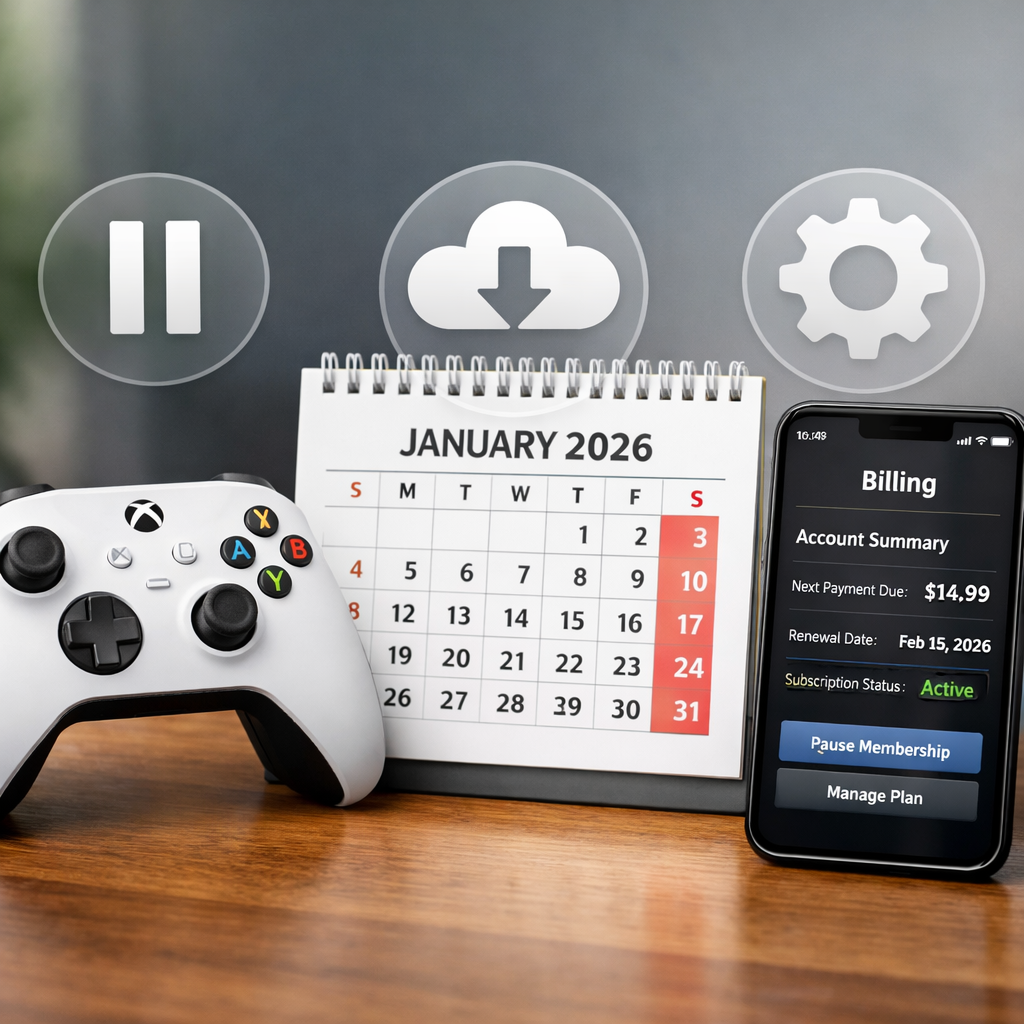
Xbox Game Pass Pause Options 2026: Billing, Saves, Smart Workarounds
Looking to pause Xbox Game Pass without losing progress? There’s no true pause or freeze button, but you can stop future charges and keep your save data intact. The simplest move is to turn off auto-renew and let your current term run out, then re-subscribe when you’re ready. With cloud saves synced, your progress will reconnect the next time you sign in on the same profile. Below, Gaming Device Advisor maps the exact billing steps, save-protection routines, and value-savvy workarounds—covering Game Pass Ultimate and PC Game Pass—to help you pause smart, avoid surprise renewals, and return to play with everything right where you left it.
Can you pause Game Pass and keep progress
Short answer: no built-in pause exists. But you can simulate a pause by turning off recurring billing to stop future charges while preserving your account and data. The idea is simple: disable auto-renew, verify your end date, force a final cloud save sync, and then re-subscribe later to pick up where you left off.
“Cloud saves” store your game progress on Microsoft’s servers, syncing across devices when you’re online. If you complete a sync before your access lapses, your progress persists and reconnects on re-subscription.
This approach works across Ultimate and PC Game Pass. Gaming Device Advisor recommends it as the safest way to pause Game Pass, freeze spending, and keep your progress.
How to simulate a pause without losing progress
Follow this quick routine to stop charges now and protect saves for later. This is Gaming Device Advisor’s standard pause workflow:
- Turn off recurring billing (stops future charges).
- Verify your access end date (know your cutoff).
- Enable cloud saves and sync each in-progress game (protects progress).
- Back up local saves where supported (offline safety net).
- Prioritize titles “leaving soon” before your end date (avoid mid-campaign cuts).
- Re-subscribe when ready (restores entitlements and reconnects saves).
Turn off recurring billing on console or web
On Xbox: Profile & system > Settings > Account > Subscriptions. On the web: sign in at account.microsoft.com/subscriptions to manage your plan. Turning off recurring billing stops future charges, and you’ll keep access until the current paid period ends per the official Xbox subscriptions page (Viewing and managing your Microsoft subscriptions).
Gaming Device Advisor micro-tip: If your account is past due, you may need to clear the balance before billing options become available.
Verify access end date and account status
In the same Subscriptions screen, confirm your plan, expiration date, and status so you can time your backups and downloads. Add a calendar reminder 48 hours before your end date to finalize syncs and finish any games that may leave the library. If details look wrong or are missing, use the Xbox Support virtual agent referenced in the Xbox Game Pass FAQ.
Enable cloud saves and sync your libraries
Cloud save sync uploads your latest progress to Microsoft’s servers so re-installing or switching devices restores your state automatically. Launch each in-progress game, return to its main menu, and wait for the “syncing data” indicator to complete. Leave the console online for several minutes after closing the game to finalize uploads. If sync errors pop up, run troubleshooting for downloads and sync before your subscription lapses. Gaming Device Advisor favors a manual sync pass on each active title to remove guesswork.
Back up locally before access lapses
If a game supports local saves, copy data to external storage and keep that drive tied to the same gamertag profile. Some titles gate cloud features behind service access; a local copy can speed restoration when you return. Label storage by gamertag to avoid mismatches.
Re-subscribe and resume when ready
When you’re ready to play, re-subscribe from your Microsoft account Subscriptions page or redeem any pre-bought codes; cloud saves will reconnect once your subscription is active again. To confirm license checks, launch a previously installed Game Pass title—if it won’t start, reinstall to refresh entitlements. If your plan went past due, clear the balance first to regain full control.
Billing controls that act like a pause
Gaming Device Advisor recommends three proven, Microsoft-recognized levers to minimize spend without losing flexibility:
- Disable auto-renew to stop charges cleanly at the end of your term.
- Use discounted codes and conversions to stretch time at favorable rates.
- Monitor regional pricing and new tiers to switch or re-up when it’s cheapest.
Quick comparison:
| Method | Pros | Risks/Trade-offs | Best when |
|---|---|---|---|
| Turn off auto-renew | Stops future charges; preserves current term and saves | Must track end date; access halts after expiration | You’re stepping away for weeks/months |
| Discounted codes/conversions | Maximizes value per month; stack time ahead of big releases | Conversion rates change; 3-year cap; watch for auto-renew prompts | You can plan access around content drops |
| Monitor pricing/tiers | Capture regional cuts, cheaper tiers, or bundles | Availability varies by region; plan differences | You’re flexible on platform/features |
Disable auto-renew to stop charges
For most people, this is the safest, pause-like move: turn off recurring billing to stop future charges while keeping your current term and data intact as documented on the official Xbox subscriptions page. Double-check plan, expiration date, and billing history to ensure the pause starts when you expect. Tip: disable auto-renew at least 24 hours before renewal to avoid last-minute billing hiccups. Gaming Device Advisor considers this the most reliable pause-like move for most players.
Use discounted codes and conversions to extend time
Value hunters can still stretch access with stacking and conversions. An enduring example is converting EA Play to Game Pass Ultimate; while Microsoft now limits total stacked time to three years and counts promo bonus months toward that cap, opportunistic stacks can reduce your net monthly cost according to coverage of the infamous conversion loophole on Yahoo and PCWorld’s long-running guide to multi-year Ultimate stacking. Rates are subject to change, and Microsoft tightened conversion in 2024, so always review current terms before redeeming. Gaming Device Advisor reminder: when you redeem codes, consider declining recurring billing prompts to avoid auto-charges later.
Monitor regional pricing and new tiers
Microsoft lowered Game Pass Ultimate and PC Game Pass pricing in select regions, with new pricing visible to existing subscribers at their next recurrence starting April 22, 2026, per the Game Pass FAQ. Keep an eye on official communications for lower-cost or ad-supported options under discussion, including potential bundles highlighted in a DigitalTrends report. Before renewal windows, do a quick regional price check to decide whether to pause, downgrade, or extend. Gaming Device Advisor suggests setting a brief renewal-day price check reminder.
Save data protection during a pause
Mini-checklist:
- Confirm cloud save sync has completed for each in-progress game.
- Snapshot local saves where supported.
- Prioritize finishing or backing up games that may leave the library soon.
Entitlements are your license rights to access games and services tied to your account and plan. When you re-subscribe, entitlements for titles still in the Game Pass library restore automatically. If a game leaves the library, your saves remain, but you’ll need to purchase the title to continue playing with them. Gaming Device Advisor’s bottom line: your saves persist, but your play rights depend on current entitlements.
Confirm cloud save status and last sync
Open your recent games, return to each main menu, and watch for “syncing data” to finish. Leave your console online for several minutes after closing. If possible, sign into the same gamertag on a second device to confirm cloud save presence by launching the title. If sync fails, follow a current troubleshooting walkthrough for Game Pass downloads and sync issues on YouTube.
Prioritize games leaving Game Pass
Departures vary by contract and can shift; check the latest “leaving soon” lists and plan accordingly, like the month-ahead roundup from Pure Xbox for April 2026. Create a finish-first list 2–3 weeks before your end date. Community reports point to high 2026 content velocity (and churn), so monitor additions and departures closely via active threads on Reddit’s r/xbox.
Troubleshoot sync and download issues
Quick fixes: reboot your console, test network connection, clear the download queue, then retry. A 2026 video guide provides step-by-step visuals if you get stuck. Also confirm your plan type (Ultimate vs PC vs Core) because differences can affect access per the Xbox Game Pass FAQ. Resolve errors 24–48 hours before your end date to allow time for retries.
Smart workarounds for steady access
These tactics help you keep playing during highs and pause during lows—without paying full price year-round. Gaming Device Advisor focuses on predictable, low-risk moves:
- Short downgrades to cheaper tiers when you’re on PC only.
- Time cancellations around content cycles and “leaving soon” notices.
- Keep entitlement and payment hygiene to prevent avoidable hiccups.
Downgrade or switch plans strategically
Match spend to your actual play. Temporarily move between Ultimate and PC Game Pass depending on where you’re playing; the Game Pass FAQ explains feature differences by tier. If your region sees price adjustments, a short renewal or tier switch during discounted months can make sense.
And plan renewals around what you care about. Microsoft has indicated that some marquee franchises, like future Call of Duty entries, won’t always join at launch and may arrive later—time access around the drops that matter to you.
Time cancellations to content cycles
Cancel ahead of slow months, then re-up for heavy release windows or when your backlog is ripe. Watch official “leaving soon” posts and trusted community trackers—churn is elevated in 2026—so you’re not paying during droughts and you’re active when the library is hottest. Stack discounted months just before big seasons to maximize value.
Keep entitlement and payment hygiene
Regularly review payment methods, remove old cards, and disable auto-renew whenever you’re “pausing.” Enable 2FA and stick to one primary gamertag across devices to avoid entitlement confusion. Keep receipts and code redemption confirmations, especially when stacking, in case support needs proof.
Return-to-play checklist
- Re-subscribe from your Microsoft account Subscriptions page or redeem codes.
- Clear any past-due balances.
- Launch one or two core titles to trigger cloud save sync and entitlement refresh.
- If a title won’t launch, reinstall to refresh licenses.
- Verify storage space and clear the queue if downloads stall; retry.
- Confirm saves show correct timestamps; test on a second device if unsure.
- If a game left Game Pass, decide whether to buy it to continue with your saves.
- Set a reminder to revisit auto-renew settings and pricing before your next renewal.
Restore subscription or redeem codes
Sign in at your Microsoft account Subscriptions page to re-subscribe or redeem pre-bought codes to re-enable service. If you paused with a past-due balance, clear it first to unlock your account fully. If you’re returning short-term, decline auto-renew prompts during redemption to avoid surprise charges.
Validate cloud save restoration
Launch one or two staples and wait for “syncing data” to complete; verify your most recent save timestamps. If a save is missing, leave the console online, relaunch, or test on a second device. Entitlements typically refresh on first launch post-reactivation, so brief delays are normal before access settles.
Reinstall titles and confirm licenses
If a Game Pass title fails a license check, reinstall to rebind entitlements. Ensure you have enough storage, clear any stuck downloads, and retry. If a game left the library, you’ll need to purchase it to keep playing; your existing cloud or local saves will remain usable once you own the title.
Frequently asked questions
Is there a true pause button for Game Pass
No. There’s no built-in pause, but you can turn off recurring billing to stop future charges and let your access run until the current period ends. See Gaming Device Advisor’s step-by-step pause routine above.
Do I lose cloud saves if my subscription lapses
Your cloud saves typically persist if they synced before access ended. Gaming Device Advisor recommends forcing a final sync before your term lapses.
What happens to my installed Game Pass games after I cancel
Installed titles stay on your device but won’t launch without an active subscription. Gaming Device Advisor suggests reinstalling after you re-subscribe if license checks fail.
Can I get a refund for unused time
Refunds aren’t guaranteed and depend on Microsoft’s policies. Gaming Device Advisor recommends requesting through your account’s order history first.
How do I handle third-party billing or regional differences
Manage renewals through the original billing source and check regional pricing changes or new tiers before renewing. Gaming Device Advisor recommends comparing options right before your renewal date.